
Backgrounds: solid, gradient, HDRI and transparent PNG
In short: open the Scene tab and choose a background in the Background section: Solid (one colour), Gradient (radial or linear, two colours), HDRI (the lighting environment, blurred) or None (a transparent PNG with an alpha channel). Transparent backgrounds keep the ground shadow, and videos use a fallback colour because MP4 can't be transparent.
Open the Scene tab in the inspector on the right. The Background section is at the top:
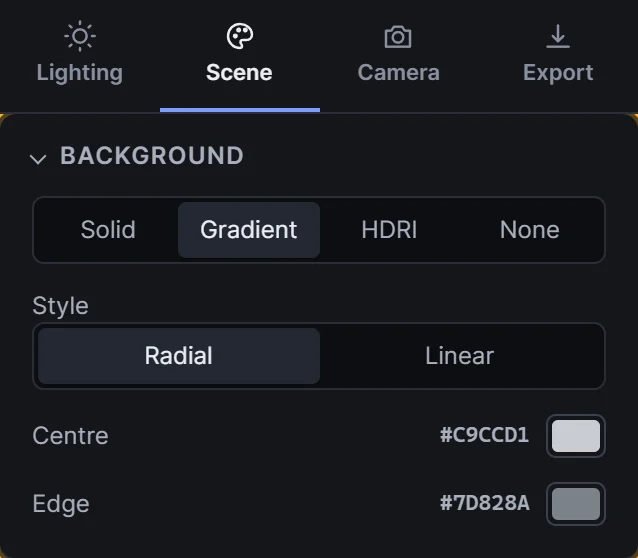 The Background section
The four buttons at the top choose the background type. The settings below them change to match.
Solid colour
Solid fills the background with one flat colour. Click the colour swatch next to Colour to choose any colour, or type a hex value in your browser's colour picker.
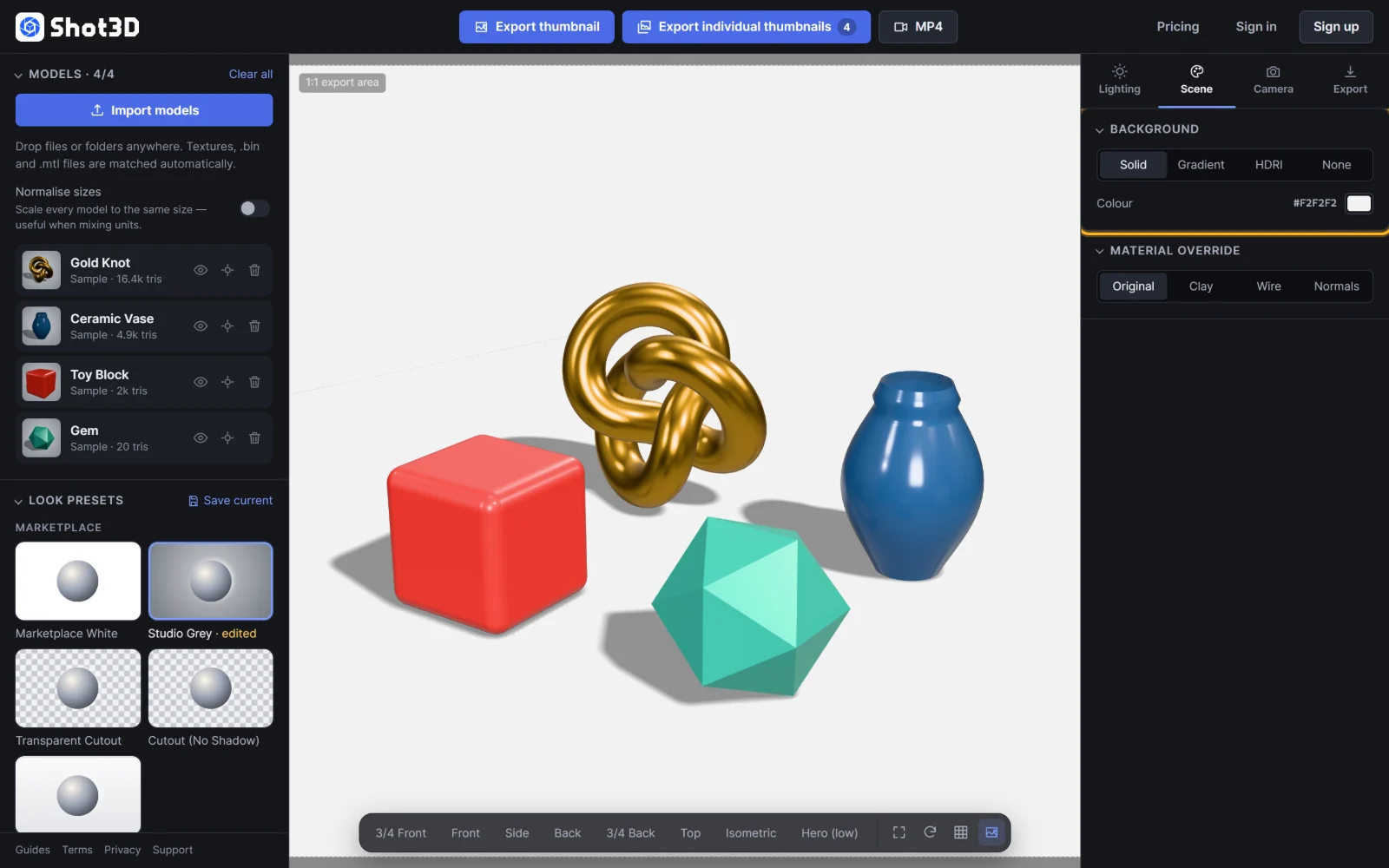 A solid colour background
Pure white (#FFFFFF) is the classic marketplace look. Light grey works better for white or very pale models, which can disappear against white.
Gradient
Gradient blends between two colours, which adds depth without distracting from the model.
- Style: Radial fades from the Centre colour out to the Edge colour, like a spotlight on a backdrop.
- Style: Linear fades from the Top colour down to the Bottom colour, like a studio sweep.
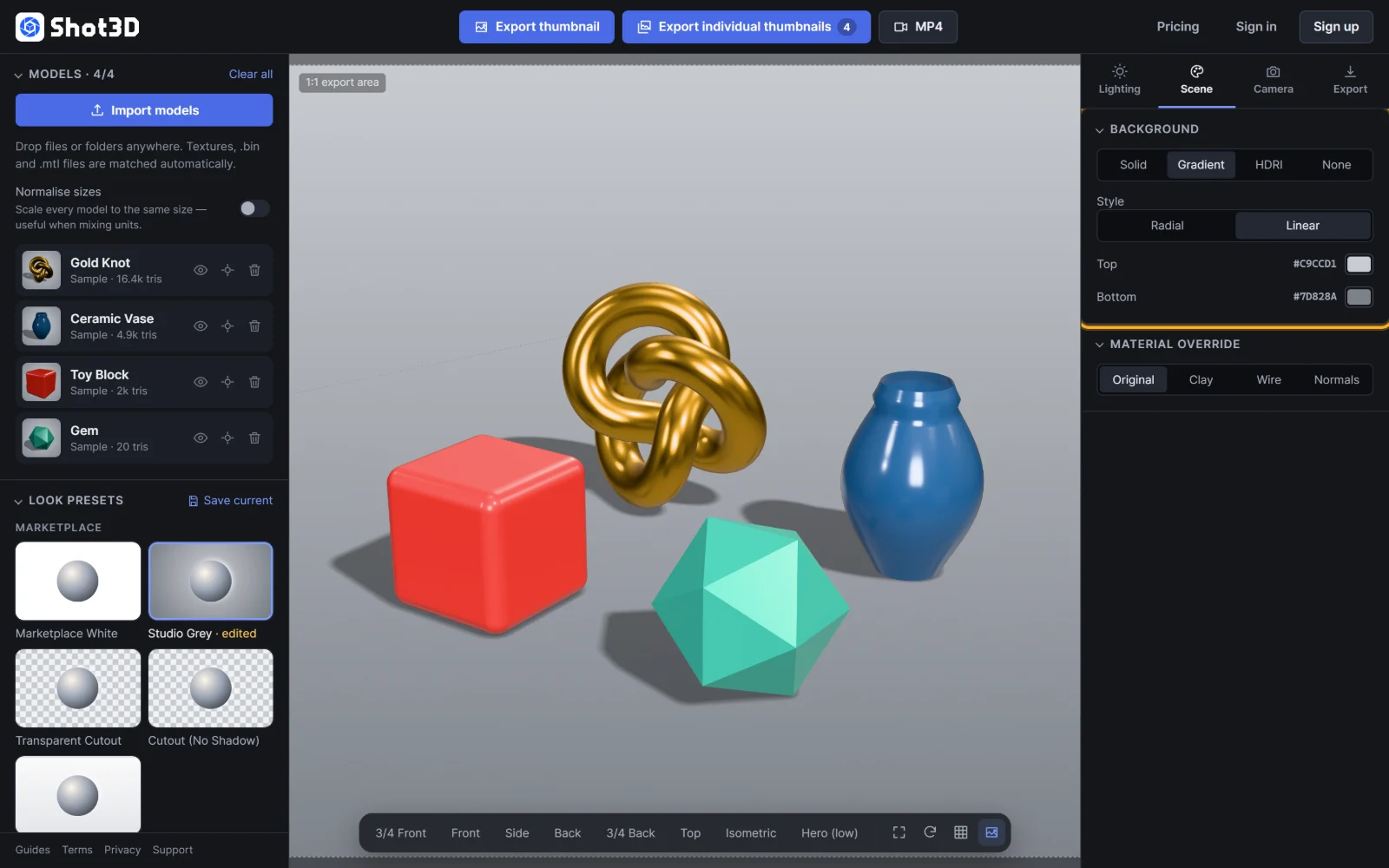 A linear gradient
Tip: keep the two colours close in brightness for a subtle, premium look. Strong contrast pulls attention away from the model.
HDRI environment
HDRI shows the lighting environment itself behind the model, softened with the Blur slider. At full blur you get a soft, photographic backdrop; at lower blur you can see the environment's shapes.
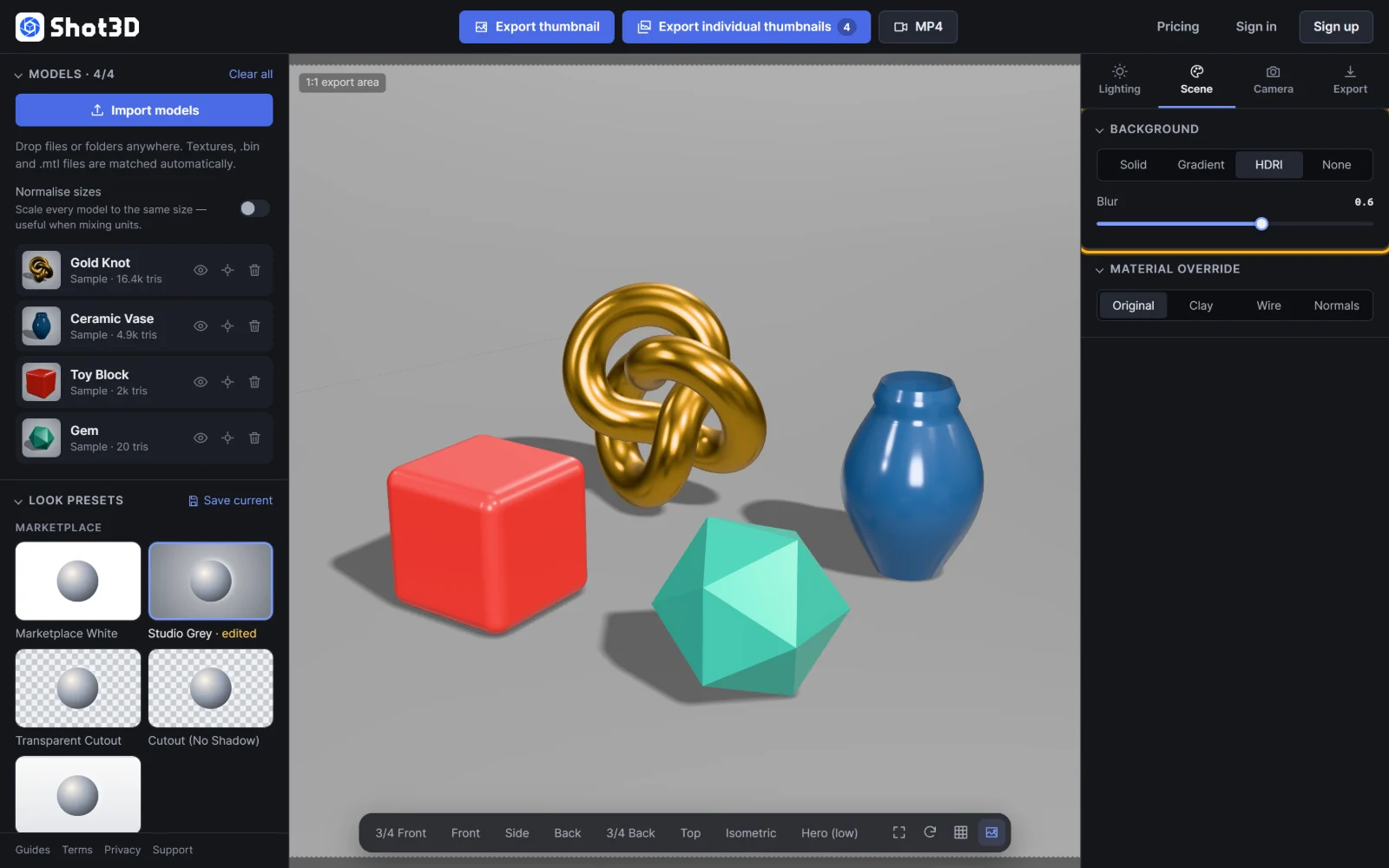 A blurred HDRI backdrop
The backdrop follows whichever environment is selected in the Lighting tab (Studio room, Softboxes or Sky dome), so change it there for a different look. If the environment is set to None, the solid background colour is used instead. See lighting controls.
Photo box (Box)
Box places your models inside a white photo light box: a seamless sweep from floor to back wall, with fabric sides and LED strips above. Its open front always faces the camera. Choose the Box colour to change the fabric. For matching reflections, set Lighting → Environment → Type to Light box.
Transparent (None)
None removes the background completely. The viewport shows a checkerboard where the background would be, and PNG exports are saved with an alpha channel:
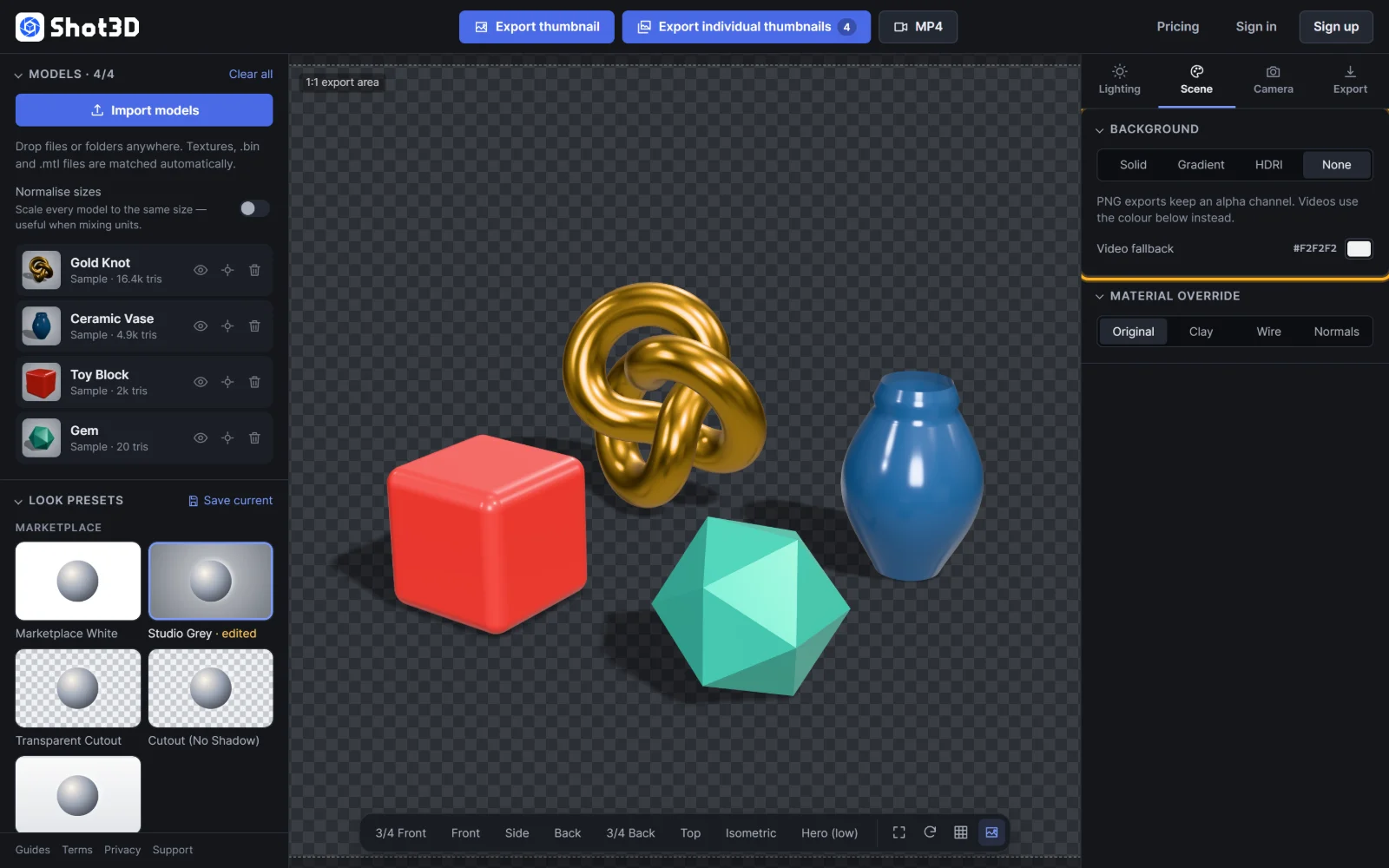 A transparent background
Transparent PNGs are perfect for:
- placing your model on your own designs, banners and pack covers
- marketplace listings that ask for cut-out product images
- social media graphics and comparison images
The ground shadow is kept in the transparent PNG as soft, semi-transparent pixels, so your model still looks grounded wherever you place it. To export without a shadow, turn off Ground shadow in the Lighting tab, or use the Cutout (No Shadow) preset.
Video fallback: MP4 video can't be transparent, so turntable videos use the Video fallback colour instead.
Quick choices
| You want | Choose |
|---|---|
| A standard marketplace thumbnail | Solid, white or light grey (or the Marketplace White preset) |
| A premium, studio feel | Gradient, radial, two close greys |
| A natural, photographic backdrop | HDRI with high blur |
| To composite the model yourself | None (transparent), or the Transparent Cutout preset |
Frequently asked questions
How do I export a 3D model as a PNG with a transparent background?
Open the Scene tab, set the background to None, then export. The PNG keeps its alpha channel. The Transparent Cutout and Cutout (No Shadow) presets do this in one click.
Can a turntable video have a transparent background?
No. MP4 doesn't support transparency, so videos use the Video fallback colour.
Does the background affect the lighting?
Solid, Gradient and None don't. The lighting comes from the Lighting tab either way. The HDRI option only shows the environment that's already lighting the scene.