
3D model axis fixer: Z-up to Y-up, and re-centre the origin
Fix a 3D model lying on its side or upside down: turn Z-up to Y-up (or back) and move its origin to the bottom centre. STL, OBJ, GLB, FBX and more. Free, in your browser.
Loading the tool…
Free · no sign-up · runs in your browser · files stay on your device
In short: drop a 3D model that comes in lying on its side or upside down. Choose the turn (Z-up to Y-up is the usual fix) and where its origin should be (bottom centre stands it on the ground). The previews show the axes before and after, and you download the fixed model. It runs in your browser.
How to fix a model's axes
- Add your model, or click Try it with an example (a Z-up STL).
- Choose the turn:
- Z-up to Y-up for models from CAD or 3D printing going into games, web viewers or most 3D apps;
- Y-up to Z-up for the other way;
- Upside down, or turn to face the other way.
- Choose the origin: bottom centre (it stands on the ground, centred), the centre of the model, its lowest corner, or where it was.
- Compare the previews (red is X, green Y, blue Z) and Download.
Why models come in sideways
Different software chooses a different axis as "up":
| Up is Z | Up is Y |
|---|---|
| 3D printing slicers, most CAD software, Blender's scene | glTF, three.js, Unity, Godot, Maya, most game engines |
Exporters usually convert between them, but not always, and STL and OBJ don't record which they used. A Z-up model opened in Y-up software lies on its back.
The origin
The origin (pivot) is the point the model turns around and is placed by. Many engines place a model at its origin, so an origin at the bottom centre makes it stand on the ground. One far off to the side makes it appear in the wrong place.
What you get back
| You put in | You get |
|---|---|
| GLB, glTF or FBX | GLB, with materials, textures and animations |
| OBJ | OBJ + MTL + textures, in a ZIP |
| STL, PLY or 3MF | STL (Z-up for slicers) |
FBX comes back as GLB because Shot3D doesn't write FBX.
What it can't do
- Turn by an exact angle: it offers the common 90° and 180° fixes.
- Fix each part separately: it turns the whole model.
Example
The example torus knot (made Z-up, like a 3D print) turned to Y-up and stood on its bottom centre:
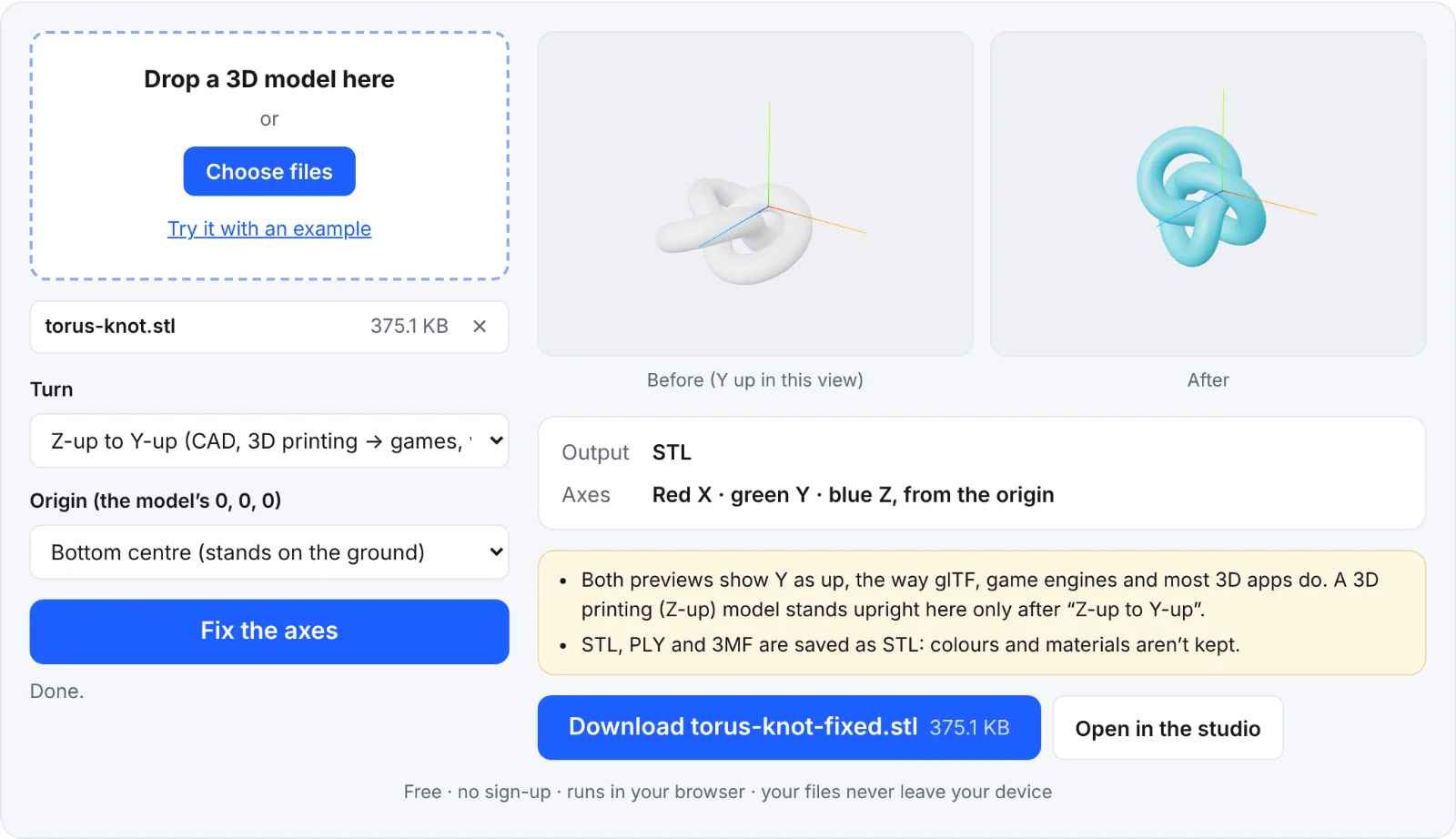 Fixing the example knot's axes
Frequently asked questions
Is my model uploaded?
No. It's turned and saved in your browser.
Which turn do I need?
If it lies on its back in a game engine or web viewer, choose Z-up to Y-up. If it lies on its back in your slicer, choose Y-up to Z-up.
Will my animations still work?
Yes, for GLB, glTF and FBX: the whole scene is turned, animations included.
Why is my OBJ now a ZIP?
The OBJ comes with its material file and textures, which must stay together.