
Add a drop shadow to a PNG: shadows that follow the shape
Add a soft drop shadow that follows the shape of a transparent PNG, for product cut-outs, logos and stickers. Presets or custom offset, softness and colour. Free, in your browser.
Loading the tool…
Free · no sign-up · runs in your browser · files stay on your device
In short: drop a PNG with a transparent background above. The tool adds a soft shadow that follows the image's shape, not its rectangle, and keeps the background transparent so the shadow blends onto whatever you place it on. Pick a style or set your own. It runs in your browser.
How to add a drop shadow
- Add a transparent PNG (or WebP): a product cut-out, a logo or a sticker. Or click Try it with an example.
- Choose a style:
- Soft, below: a gentle shadow under the object, like a product photo.
- Lifted: further below and softer, so the object seems to float.
- To the side: down and to the right, like sunlight.
- Custom: set the offset, softness and position yourself.
- Set the strength and colour.
- Download the PNG. It's larger than the original, with room for the shadow.
How it works
The shadow is made from the image's own transparency: a copy of its shape is filled with your colour, moved by the offset, and blurred (a three-pass box blur, close to a true Gaussian). Then the original is drawn on top. Presets scale with the image size, so they look the same on a 500 px and a 5,000 px image.
What it needs
A transparent background. On an image with a solid background, the shadow falls behind the whole rectangle (the tool warns you). Remove the background first.
Tips
- Product listings: a soft, subtle shadow (20–35% strength) looks natural on white. Some marketplaces have rules about main images; check them before adding shadows to a main photo.
- Dark backgrounds: a dark shadow won't show; a coloured or lighter "glow" can work instead.
Example
The example cupcake with a soft shadow below:
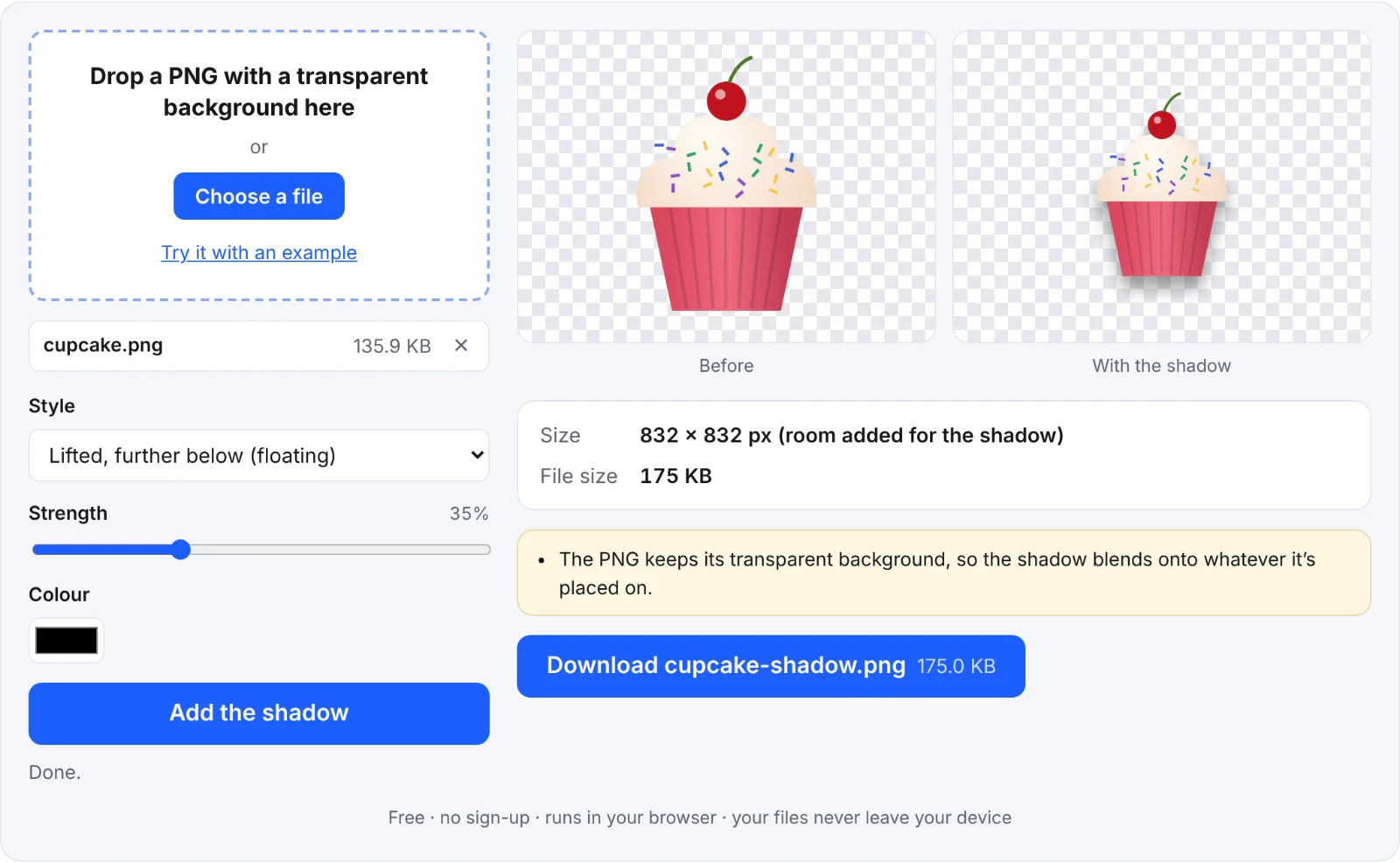 A soft drop shadow
Frequently asked questions
Is my image uploaded?
No. The shadow is drawn in your browser.
Why is my image bigger?
Room is added around it so the shadow isn't cut off. Use trim transparent image to remove spare space afterwards.
Can I add an outline too?
Yes: add it first with add an outline, then the shadow here.
Does it work with JPEG?
JPEG has no transparency, so the shadow would surround the whole rectangle. Use a PNG cut-out.