
VRChat avatar thumbnail maker for Booth, Gumroad and Jinxxy listings
Open the VRChat avatar thumbnail makerOpens at 1024 × 1024 px · Free · runs in your browser · files stay on your device
In short: drop your avatar's FBX and its textures into the thumbnail maker. It opens with the vivid Neon Night look as a square 1024 × 1024 PNG, the usual product thumbnail shape on Booth and Gumroad. Pick a flattering angle and export, then switch to 16:9 for a cover image. It runs in your browser, so unreleased avatars stay private.
Avatar bases, outfits and accessories sell on their thumbnails. A clean, lit render that shows the whole avatar, or a close-up of the face or outfit, stands out in a crowded storefront.
Sizes for avatar stores
| Store | Thumbnail | Cover or gallery |
|---|---|---|
| Gumroad | Square, commonly 600 × 600 px | 16:9, commonly 1280 × 720 px |
| Booth | Square works best in search grids | Extra images in any shape |
| Jinxxy and Payhip | Square | 16:9 or 4:3 |
The thumbnail maker opens square. For covers, change the aspect ratio to Widescreen 16:9 in the Export tab.
How to make an avatar thumbnail
- Find the files. Avatars are built from an FBX file plus texture images, usually in your Unity project's
Assetsfolder. - Open the thumbnail maker. It opens with Neon Night, square, at 1024 × 1024.
- Drop in the FBX with its textures, or the whole folder. Textures are matched by name automatically.
- Frame the avatar. 2 gives a straight-on front view, 1 a flattering 3/4 view. Scroll to zoom in on the face or the outfit for detail shots.
- Export → Thumbnail. For a cover, switch to 16:9, reframe and export again.
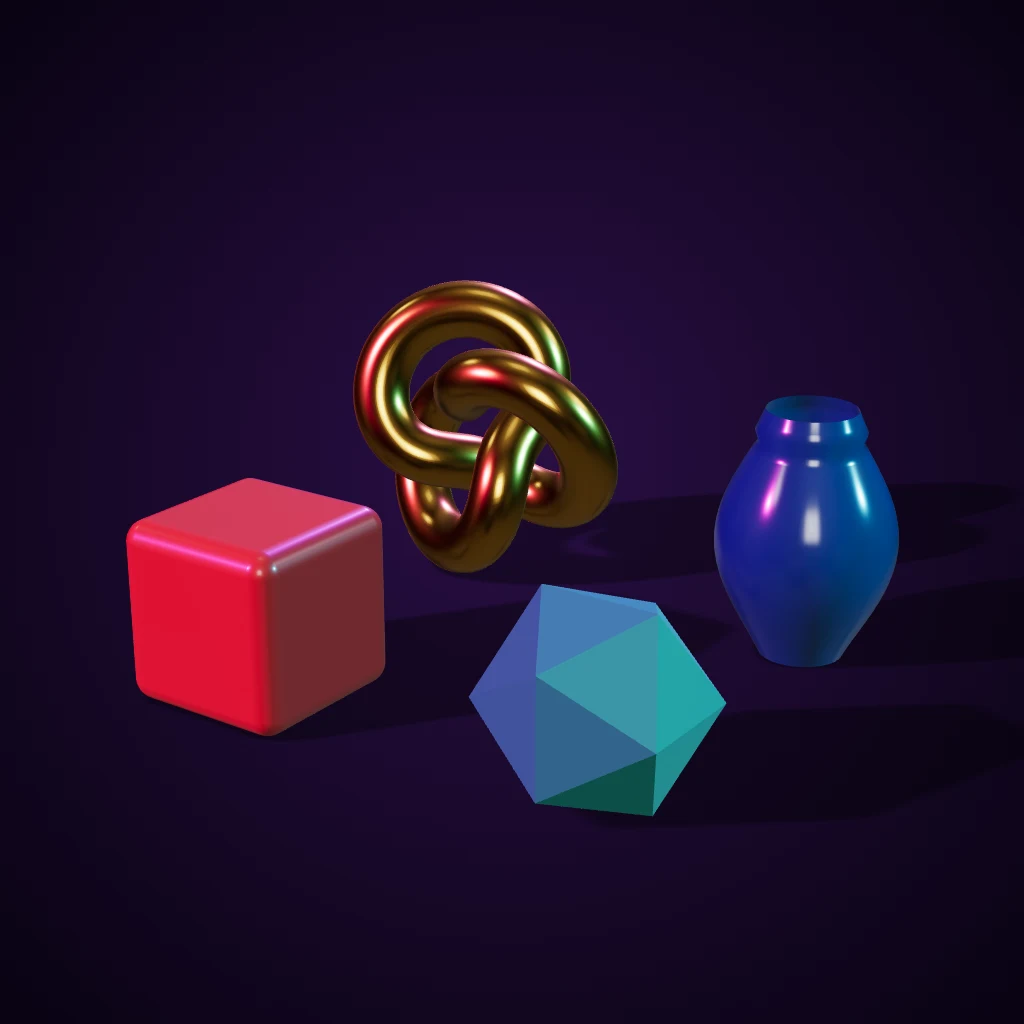 A real export from the thumbnail maker's settings
Looks for avatars
- Neon Night or Cool Tech for the classic VR social look.
- Pastel Pop or Mint Fresh for cute and kawaii avatars.
- Transparent Cutout to place the avatar on your own illustrated background or store banner.
- Studio Grey for a neutral catalogue image of outfits and accessories.
Frequently asked questions
Will my lilToon or Poiyomi shaders show up?
No. Those are Unity shaders. Shot3D shows the avatar with standard lit materials using the textures from the file, which is accurate for colour and detail, but toon outlines, rim lights and emission effects from the shader won't appear. Many creators use these renders for clean catalogue images and in-game screenshots for the shader look.
Can I open .vrm or .unitypackage files?
Not directly. Export the avatar as FBX (or open the FBX inside the package) and drop that in with its textures.
What pose is the avatar shown in?
The pose saved in the FBX, usually a T-pose or A-pose. Front and 3/4 angles with a slight zoom make that look natural in a thumbnail.
Is it free?
Yes, for up to 10 exports a day with a free account (3 without one). The Free plan goes up to 1,024 px with a small Shot3D label. Pro (£10/month) removes the label, goes up to 4,096 px and adds 360° turntable videos, which make great Booth and Gumroad previews. Paid plans are for buyers aged 18 or over, or with a parent or guardian's permission.
Are my avatars uploaded?
No. Everything renders in your browser, so unreleased avatars never leave your computer.