
Blockbench model to PNG: render Minecraft-style models as images
Open the Blockbench model rendererOpens at 1024 × 1024 px · Free · runs in your browser · files stay on your device
In short: in Blockbench, use File → Export → Export glTF Model (or OBJ), then drop the file into this renderer. It opens with soft Overcast Daylight lighting at 1024 × 1024. Pick an angle and click Export → Thumbnail, or render a whole set of mobs, items or blocks at once with Export → Individual thumbnails. It runs in your browser.
Blockbench's own screenshot is fine for a quick look, but a mod page, resource-pack listing, Marketplace pitch or portfolio deserves better lighting, a clean background and every model framed the same way. That's what this tool does.
How to render a Blockbench model
- Export from Blockbench. Open the model and choose File → Export → Export glTF Model (
.gltfor.glb) or Export OBJ Model. glTF is the better choice: it bundles the textures with the model, and keeps them crisp. Use Blockbench 4.7 or later, as earlier versions flipped glTF textures. - Open the renderer. The studio opens with Overcast Daylight, which shows block colours accurately, and a 1024 × 1024 PNG.
- Drop in your models. You can drop a whole folder of exports at once. Each model is placed on the ground and framed for you.
- Choose an angle. 7 gives the isometric view blocks and items are usually shown at; 1 is a 3/4 view that suits mobs and characters. Press F to frame.
- Export. Export → Thumbnail saves one PNG of the view. Export → Individual thumbnails saves a separate, framed PNG of every model in one ZIP, named after each file.
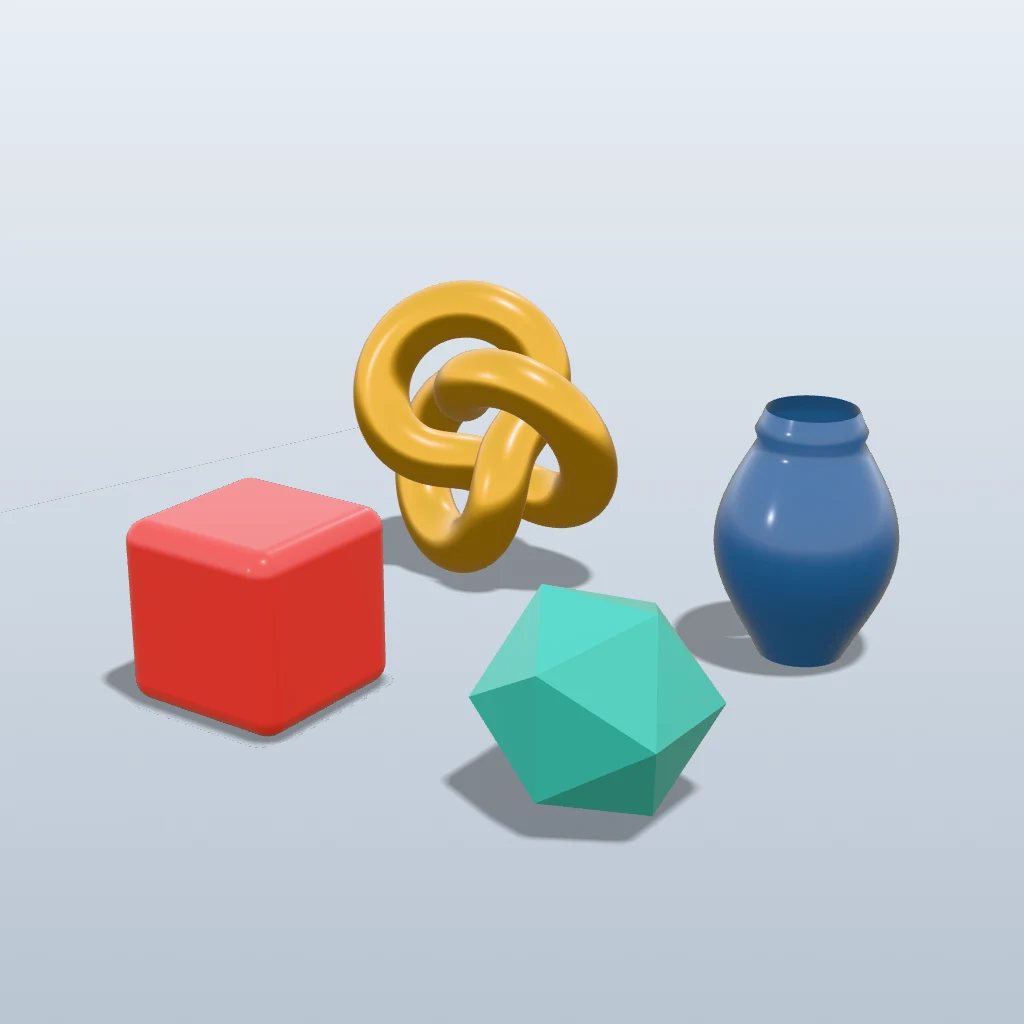 A real export from the renderer's settings
Which export format?
| Format | Use it when | Notes |
|---|---|---|
| glTF / GLB | Almost always | Textures travel with the model and stay pixel-sharp |
| OBJ | An older workflow needs it | Drop the .obj, .mtl and texture .png together; pixel-art textures may look softer |
| FBX | Not needed here | Blockbench exports ASCII FBX; glTF is simpler |
Looks that suit Minecraft-style models
- Overcast Daylight for honest, even colours.
- Pastel Pop, Mint Fresh or Sunflower for bright, friendly listings.
- Transparent Cutout to place renders on your own banner or mod page header.
- Hero Spotlight or Neon Night for boss mobs and dramatic reveals.
Frequently asked questions
Can I render Minecraft Java and Bedrock models?
Yes, as long as you open them in Blockbench and export them as glTF or OBJ. Shot3D doesn't read Minecraft's own JSON model files directly.
Can I make a turntable video of my model?
Yes. Pro and Studio export seamless 360° MP4 turntables, great for showing a mob or item from every side. See the turntable maker.
Is it free?
Yes, for up to 10 exports a day with a free account (3 without one). The Free plan exports PNGs up to 1,024 px in batches of up to 5 models, with a small Shot3D label. Pro (£10/month) removes the label, goes up to 4,096 px and renders up to 200 models at a time. Paid plans are for buyers aged 18 or over, or with a parent or guardian's permission.
Are my models uploaded?
No. They're rendered in your browser and saved straight to your device.