
Using look presets (and saving your own)
In short: a look preset sets the lighting, background and material in one click. Pick one from Look presets in the left sidebar. If you change any setting afterwards, the preset is marked edited. Click Save look to keep your version as a custom preset under My presets, ready to reuse for every future listing.
What a preset includes
A preset is a complete "look". It sets:
- Lighting: environment, key, fill and rim lights, ambient light, ground shadow, exposure and tone mapping
- Background: solid colour, gradient, blurred HDRI or transparent
- Material override: your models' own materials, or clay, wireframe or normals
It doesn't change your models, camera angle or export settings, so you can switch looks freely without losing your framing.
Browse the presets
The Look presets panel sits below your models in the left sidebar. Scroll down to see all of them:
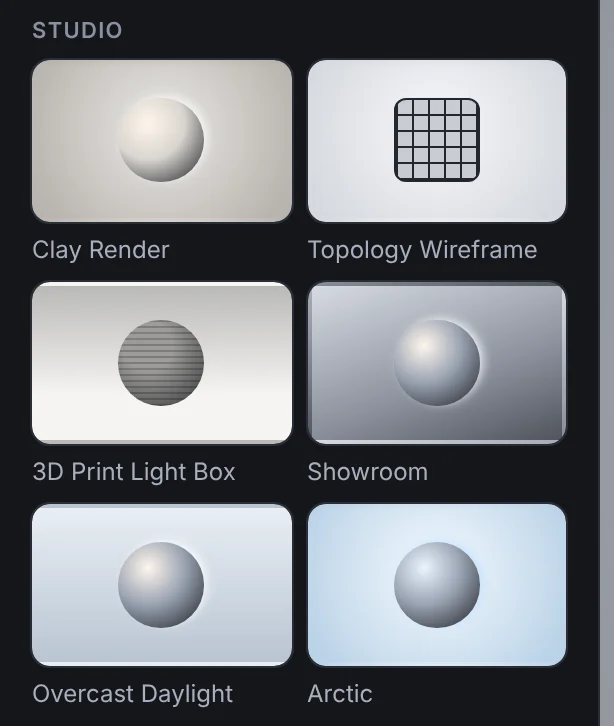 Look presets in the library
The 24 built-in presets are grouped by style:
| Group | Presets | Best for |
|---|---|---|
| Marketplace | Marketplace White, Studio Grey, Transparent Cutout, Cutout (No Shadow), Product Softbox | Store thumbnails |
| Studio | Clay Render, Topology Wireframe, 3D Print Light Box, Showroom, Overcast Daylight, Arctic | Form, topology, 3D print previews and natural light |
| Dramatic | Dark Studio, Hero Spotlight, Noir, Rim Silhouette | Hero and portfolio shots |
| Mood | Golden Hour, Warm Interior, Cool Tech | Atmosphere and colour |
| Stylised | Neon Night, Pastel Pop, Mint Fresh, Sunflower, Blueprint Wire, Normal Map View | Social posts and technical breakdowns |
Hover over a preset to see a short description of it.
For more looks, click Library at the top of the panel to open the preset library: packs of ready-made looks for small products, 3D prints and game assets.
Apply a preset
Click a preset's card. The whole scene updates instantly, and the card is outlined to show it's active. Here's Marketplace White, the classic store look:
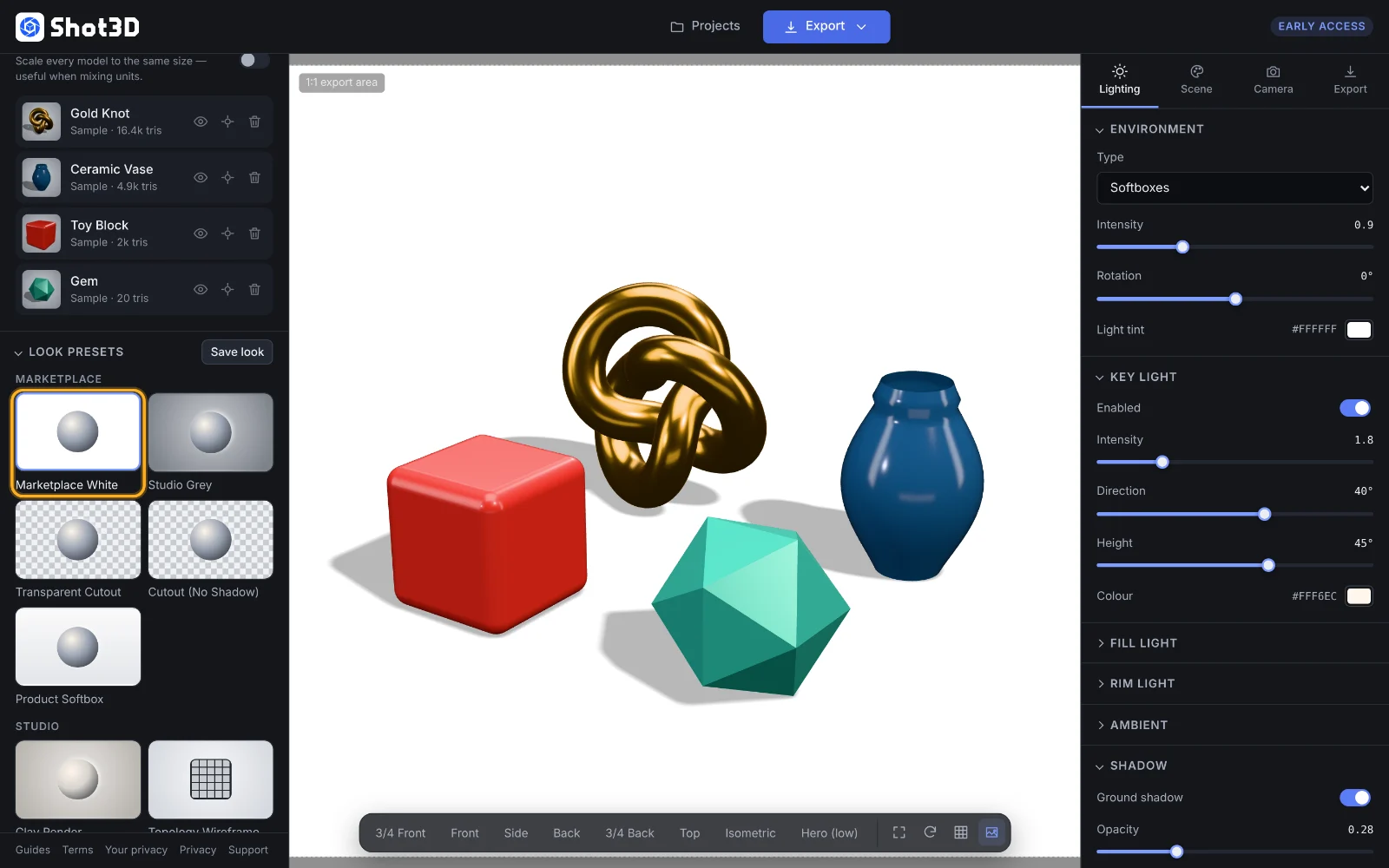 Marketplace White
And here's Hero Spotlight, from the Dramatic group, on the same models:
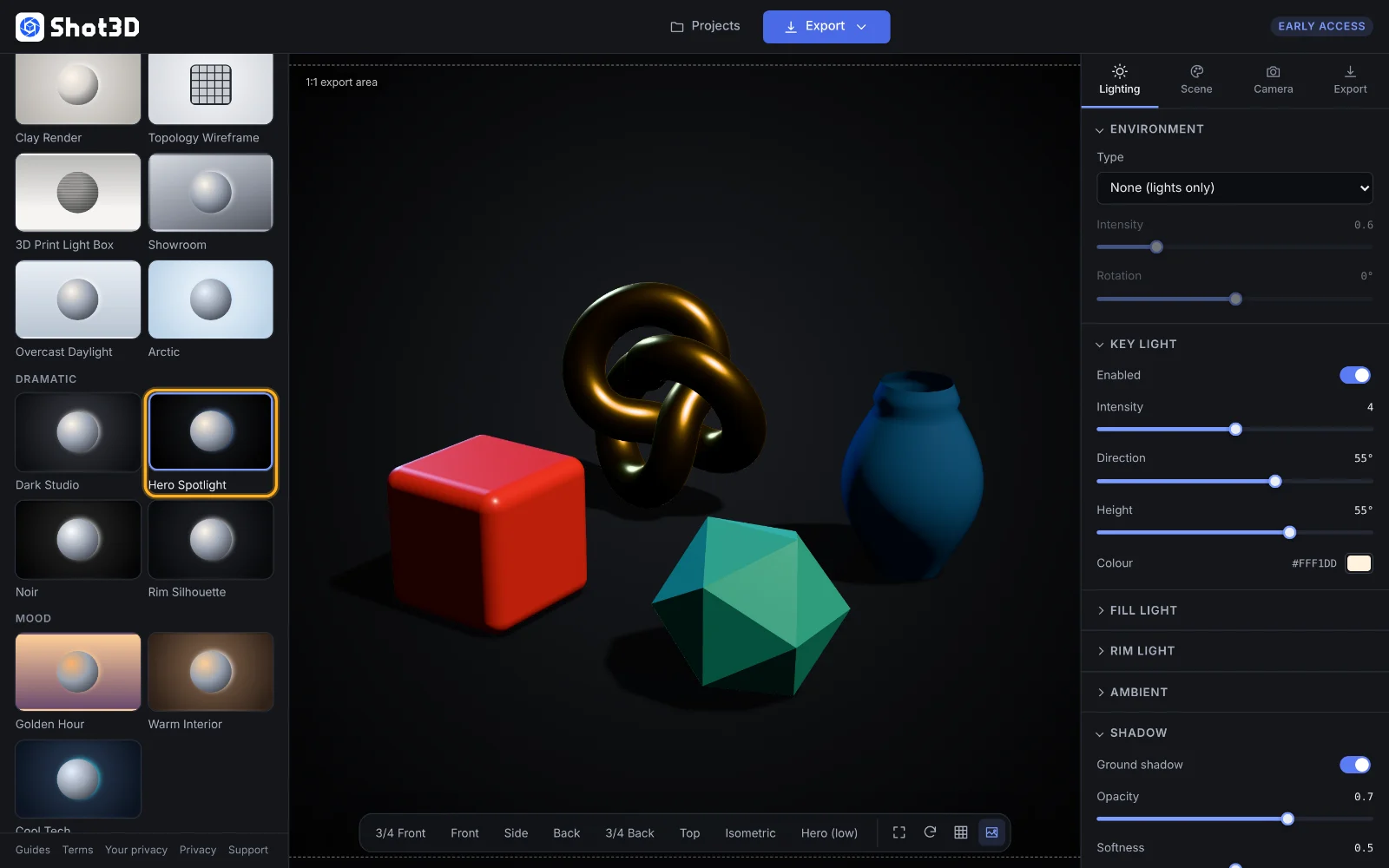 Hero Spotlight
Tweak a preset
Presets are starting points. Change anything in the Lighting or Scene tabs and the active preset is marked · edited:
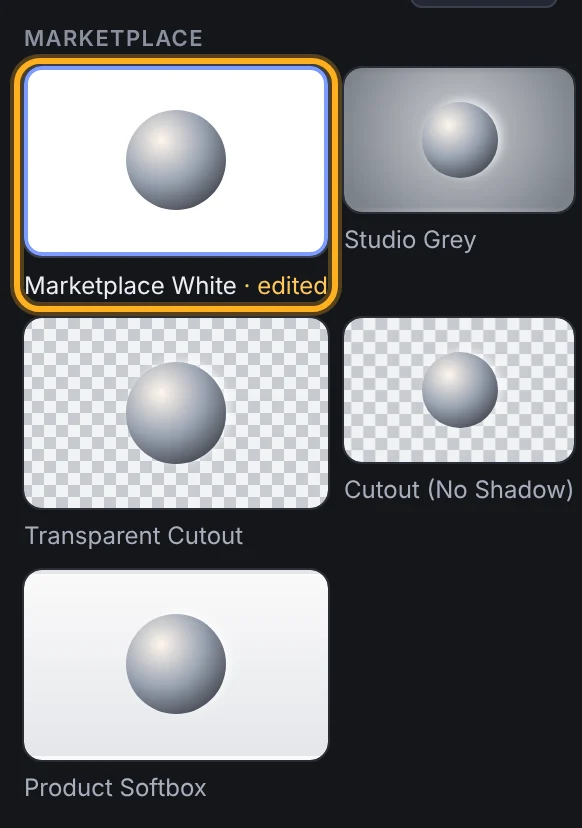 An edited preset
Click the preset again at any time to go back to its original settings.
Save your own preset
When you're happy with a look, save it:
- Click Save look at the top right of the Look presets panel.
- Type a name, for example "My store look".
- Press Save or Enter. Press Esc to cancel.
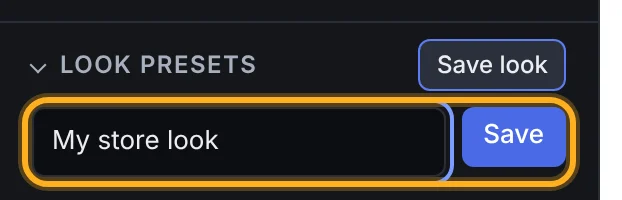 Name your preset
Your preset appears in a new My presets group at the bottom of the panel:
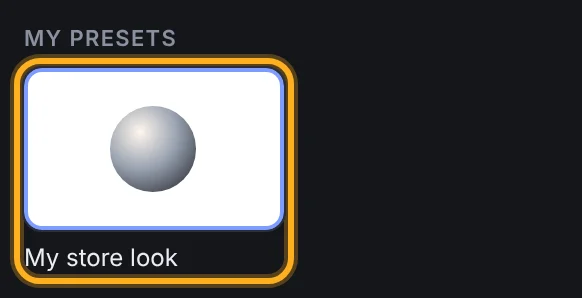 Your saved presets
Custom presets are saved in your browser, so they're there whenever you open Shot3D on the same computer and browser. To delete one, hover over its card and click the × in its corner.
The Free plan saves up to 3 custom presets, Pro up to 50, and Studio has no limit.
Tips
- Build a house style. Save one preset for hero thumbnails and use it for every listing. A consistent look makes your whole store feel more professional.
- Save a version per model type. For example, one for light-coloured models on Studio Grey and one for dark models with a stronger rim light.
- Start from the closest built-in preset. It's quicker to adjust Product Softbox than to build a look from scratch.
Frequently asked questions
Does changing a preset affect my camera or export settings?
No. Presets only set lighting, background and material. Your models, camera angle and export settings stay as they are.
Where are my custom presets stored?
In your browser's local storage on your device. They aren't uploaded. Clearing your browser's site data removes them.
How many presets can I save?
Up to 3 on Free, 50 on Pro, and unlimited on Studio.