
Saving and opening projects
In short: click Projects in the top bar, name your project and click Save project. Shot3D keeps your models, look, camera and export settings in this browser on this device, and saves later changes automatically. Next time, click Reopen on the empty studio. To keep a backup or move to another device, click Download .shot3d file, then open that file in Shot3D anywhere. Nothing is uploaded.
What a project keeps
A project remembers everything you need to carry on where you left off:
| Kept | Details |
|---|---|
| Models | The original files you imported, including textures and other files that came with them, byte for byte |
| Model list | The order of the models, which are hidden, and any 90° turns you made |
| Look | Lighting, background and material settings, and which preset you started from |
| Camera | The exact viewpoint, the lens and framing, auto-rotate and the grid |
| Export settings | Aspect ratio, sizes, file name prefix, angles, listing kit, contact sheet, video and GIF settings, and Normalise sizes |
A project doesn't keep which model is selected. If your look came from one of your own saved presets, the project keeps the look itself, but opening it on another device doesn't add that preset to My presets there.
Where projects are kept
Saved projects stay in your browser's own storage on your device. They are never uploaded to Shot3D. Each browser has its own projects: a project saved in Chrome on your laptop isn't in Edge, or on your phone.
Browsers can clear what websites store, so don't rely on a saved project as your only copy:
- clearing your browser's site data or history for shot3d.co.uk deletes saved projects;
- private or incognito windows forget everything when they close, and some don't allow saving at all;
- Safari can delete a website's stored data if you use Safari for 7 days without visiting that site (WebKit's explanation).
To keep a copy that is safe from all of these, download a .shot3d file (see below).
Save a project
- Import your models (see Importing 3D models), and set up the look, camera and export settings.
- Click Projects in the top bar.
 The Projects button
- Type a name for the project. Shot3D suggests one from your first model's name.
- Click Save project, or press Enter.
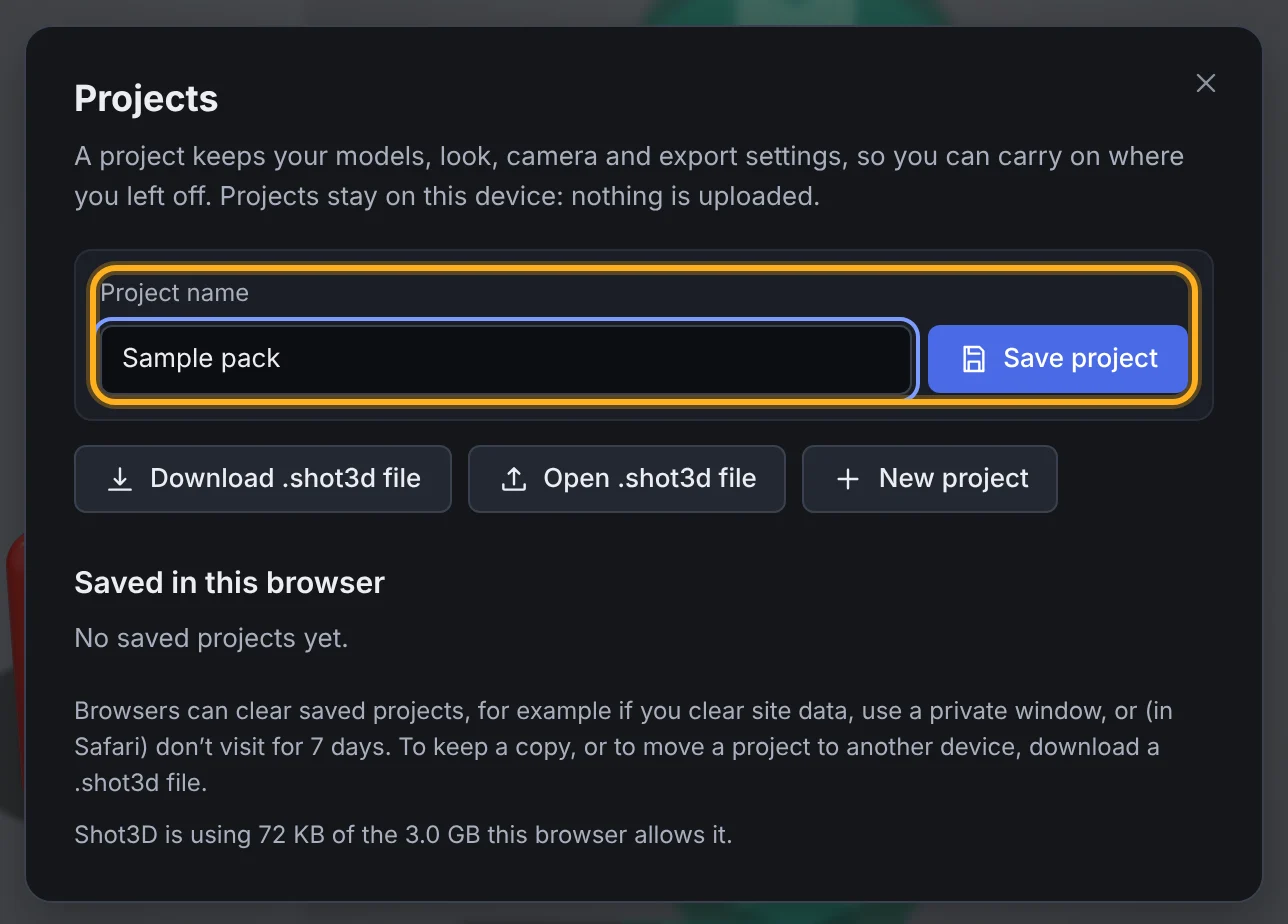 Naming a project
The project appears under Saved in this browser, with a preview of its first model, the number of models, how much space its files take and when it was last saved:
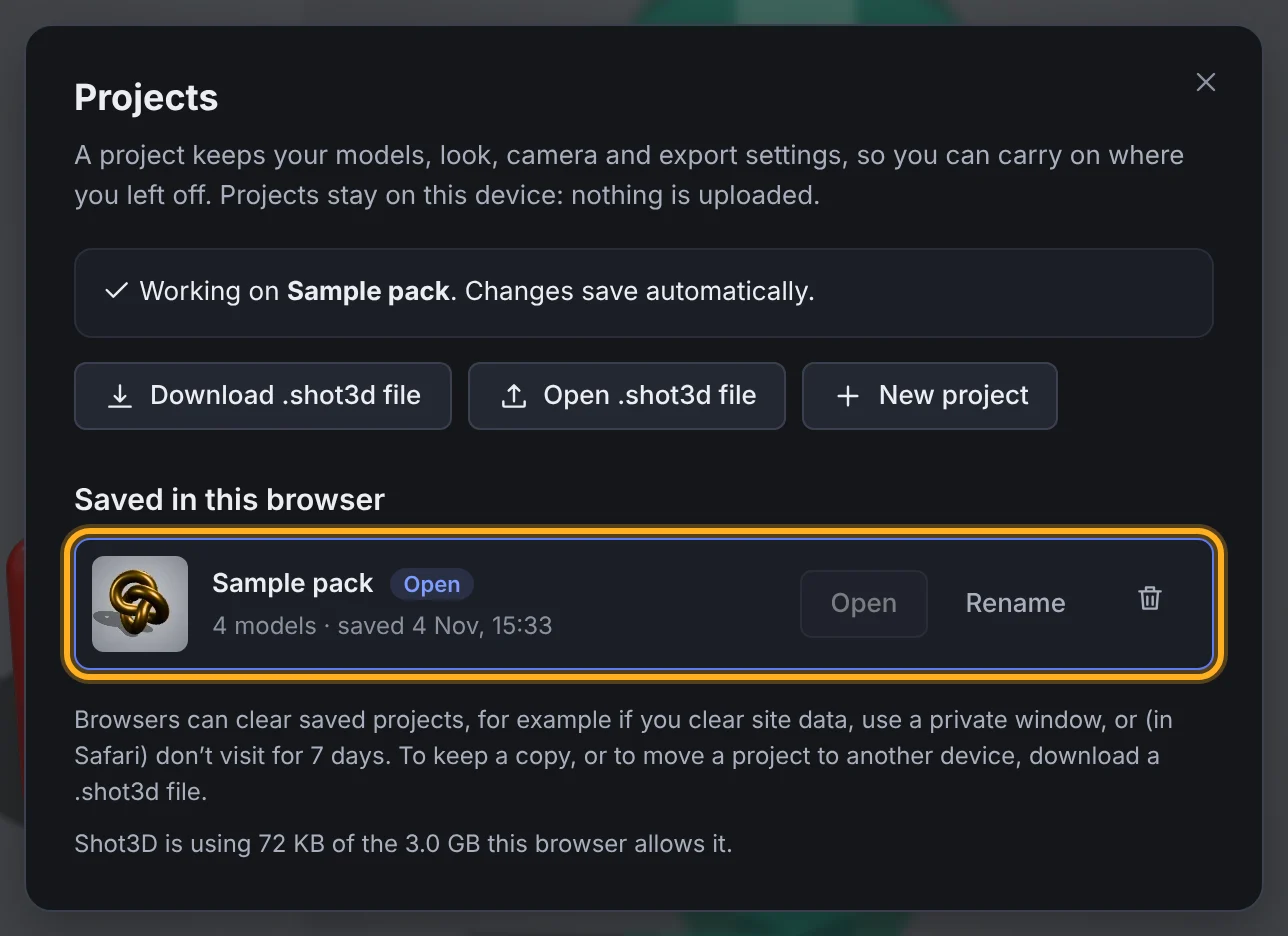 The saved project
You can also press Ctrl+S (Cmd+S on a Mac) to open the Projects dialog, or to save straight away once a project is open.
Changes save automatically
Once a project is saved or opened, the top bar shows its name, and every change you make saves to it a moment later: importing or removing models, hiding or turning them, changing the look or export settings, and moving the camera. The top bar says Saving… while it saves, then Saved:
 The open project and its save status
If it says Not saved, open Projects to see why. The most common reason is that the device is out of storage space.
Reopen a project
When you come back to Shot3D, the empty studio offers to reopen your most recently saved project. Click Reopen and the project's name:
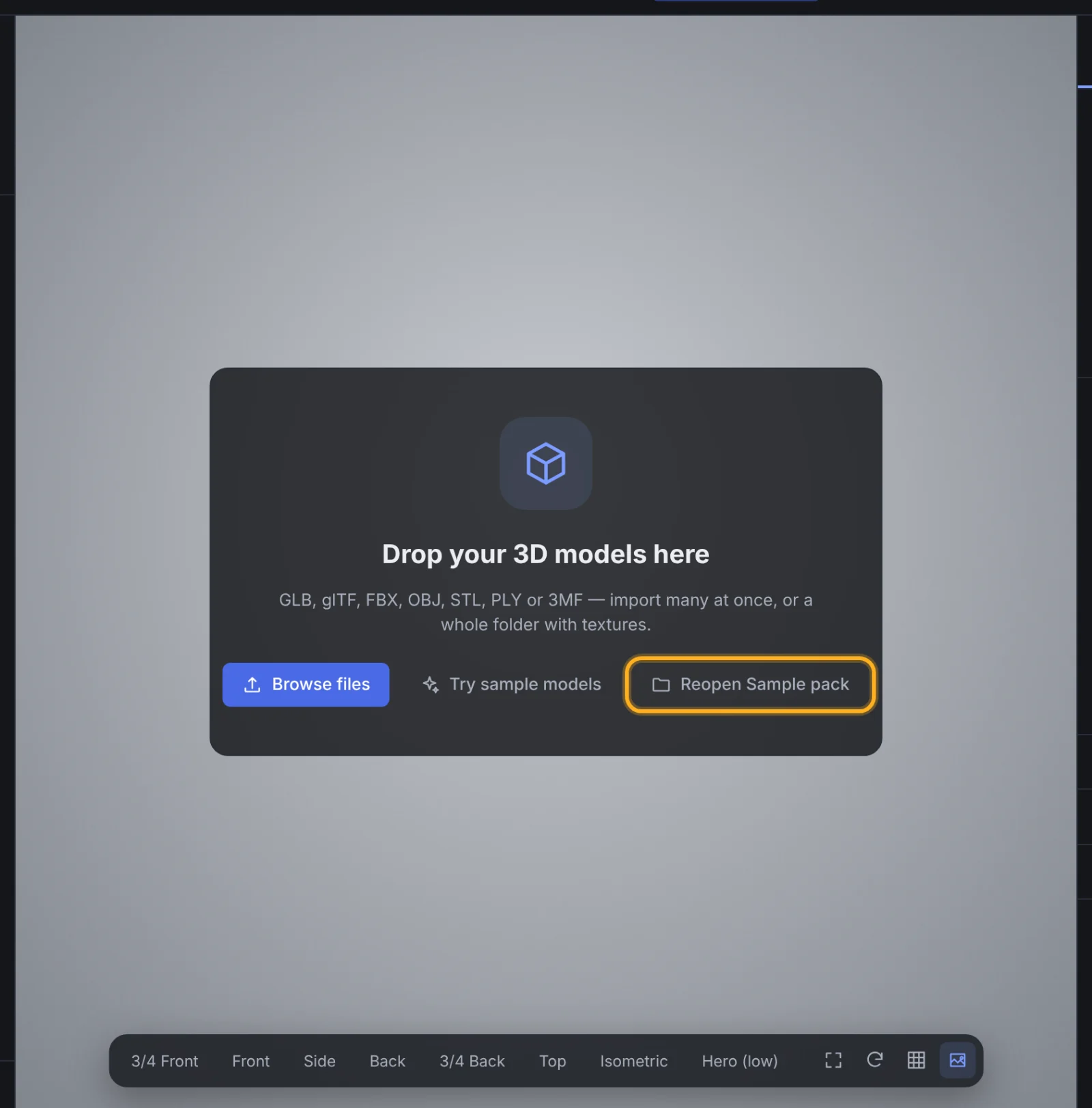 Reopening the last project
To open a different project, click Projects, then Open next to the one you want. A progress bar shows each model loading, and you can click Cancel to stop. If you cancel, the models loaded so far stay in the studio, and the saved project is left as it was.
If the studio has models that aren't saved in a project, Shot3D asks before replacing them, so you can save them first.
Start a new project
Click Projects, then New project. This clears the models from the studio and stops saving to the open project. Your look, camera and export settings stay as they are, ready for the next pack.
Rename or delete a project
In the Projects dialog:
- click Rename, type the new name and press Enter (or Esc to leave it as it was);
- click the bin icon, then Delete, to remove a project and its stored files from this browser. This can't be undone, so download a .shot3d file first if you might want it again.
Move a project with a .shot3d file
A .shot3d file contains the whole project: its settings and the original model files. Use it to back up a project, or to carry on working on another device or in another browser.
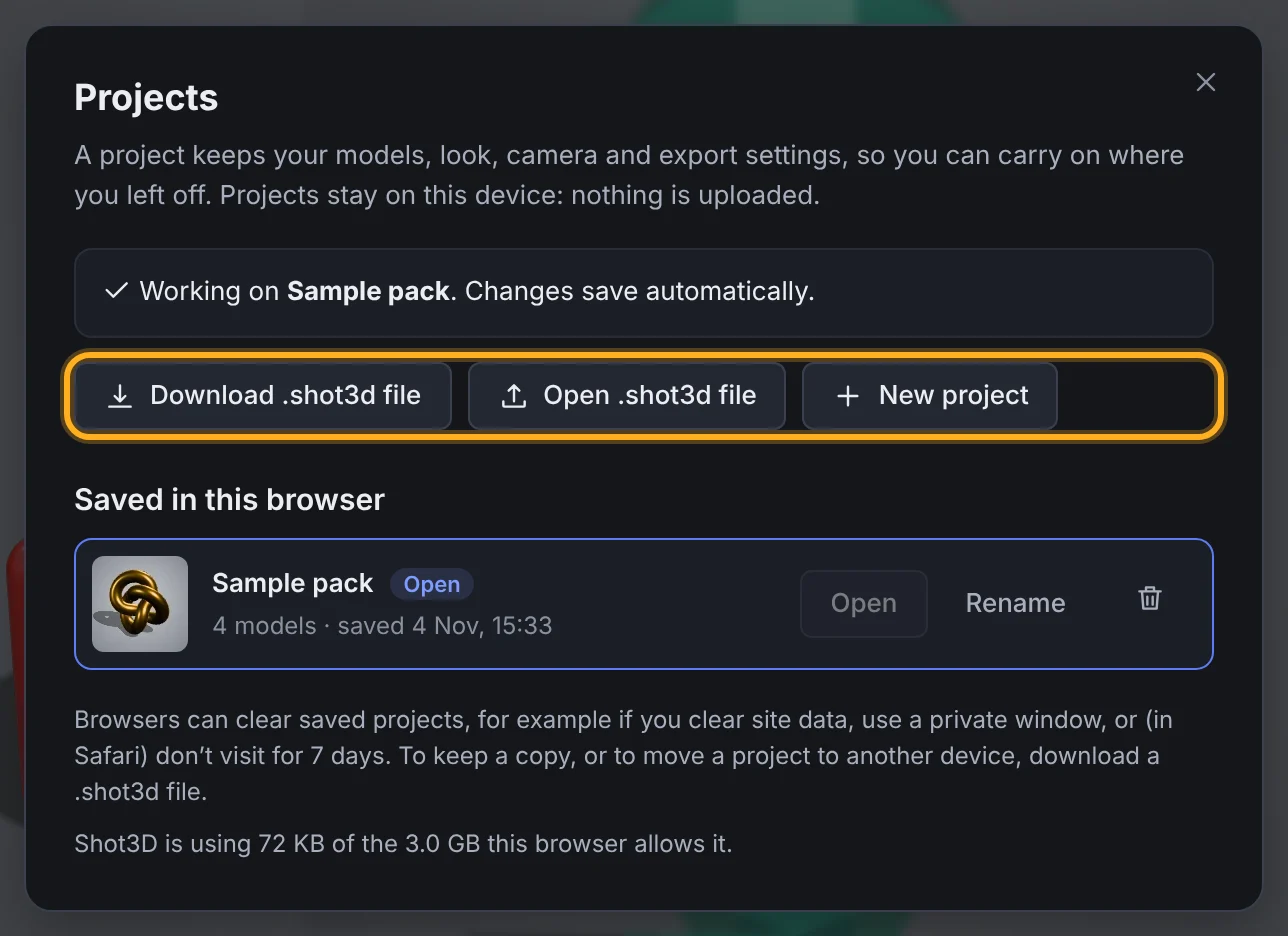 Project file buttons
- To make one, open Projects and click Download .shot3d file. It downloads the models and settings currently in the studio, named after the project, for example Chair pack.shot3d.
- To open one, click Projects, then Open .shot3d file. You can also drop the file onto the studio, or choose it with Browse files.
A project opened from a file isn't saved in that browser until you click Save project. Making and opening .shot3d files happens on your device, and doesn't count towards your exports.
A .shot3d file holds copies of your original models and textures, so only share it with people you'd share the models with.
Plans
| Signed out | Free account | £1 trial | Pro | Studio | |
|---|---|---|---|---|---|
| Saved projects in each browser | 1 | 1 | Unlimited | Unlimited | Unlimited |
| Download and open .shot3d files | Yes | Yes | Yes | Yes | Yes |
"Unlimited" is still limited by how much storage your browser allows: the Projects dialog shows how much Shot3D is using. If your plan's limit is reached, delete a saved project to save another, or download the project as a .shot3d file instead. If you move to a plan with a lower limit, nothing is deleted: you can still open every saved project, but can't save a new one until you're under the limit.
Troubleshooting
| Message | What to do |
|---|---|
| There isn't enough storage space on this device | Delete projects you no longer need, or free up disk space, then save again. Downloading a .shot3d file still works |
| "model.glb" is no longer available. Import it again, then save | The file was moved or changed on your computer after you imported it. Import it again and save |
| A file is missing from this saved project | The browser has cleared part of its storage. Open your .shot3d backup if you have one |
| This project was saved by a newer version of Shot3D | Reload the page to get the latest version, then open it again |
| This browser can't save projects | You may be in a private window. Use a normal window, or download a .shot3d file instead |
| Couldn't reopen 2 models | Those models failed to load. The rest are in the studio, and the saved project is left unchanged, so nothing is lost. Changes you make now aren't saved to that project: import the missing files again and save a new project, or open your .shot3d backup |
Frequently asked questions
Are my models uploaded when I save a project?
No. Saved projects are kept in your browser's storage on your device, and .shot3d files are made on your device and saved where you choose. Shot3D's servers never receive your models.
Can I open my project on another computer?
Yes. Download a .shot3d file, move it to the other computer (for example on a USB stick or through your own cloud storage) and open it in Shot3D there.
Does saving a project use up my exports?
No. Only exported images, contact sheets, videos and GIFs count towards your exports. Saving, reopening, downloading and opening projects don't.
Why did my project disappear?
Your browser has probably cleared Shot3D's storage: see Where projects are kept. Keep a .shot3d file of any project you want to be sure of keeping.