
Managing models: select, hide, focus, rotate and remove
In short: every imported model appears in the Models list on the left. Click a model to select it and see its size, meshes, materials and vertex count. Use the row buttons to hide it (hidden models are left out of exports), focus the camera on it or remove it. Selected models can be rotated in 90° steps, and Normalise sizes scales every model to a comparable size.
The Models list
The header shows how many models are visible out of the total, for example Models · 4/4. Each row has a preview, the model's name, its format and its triangle count:
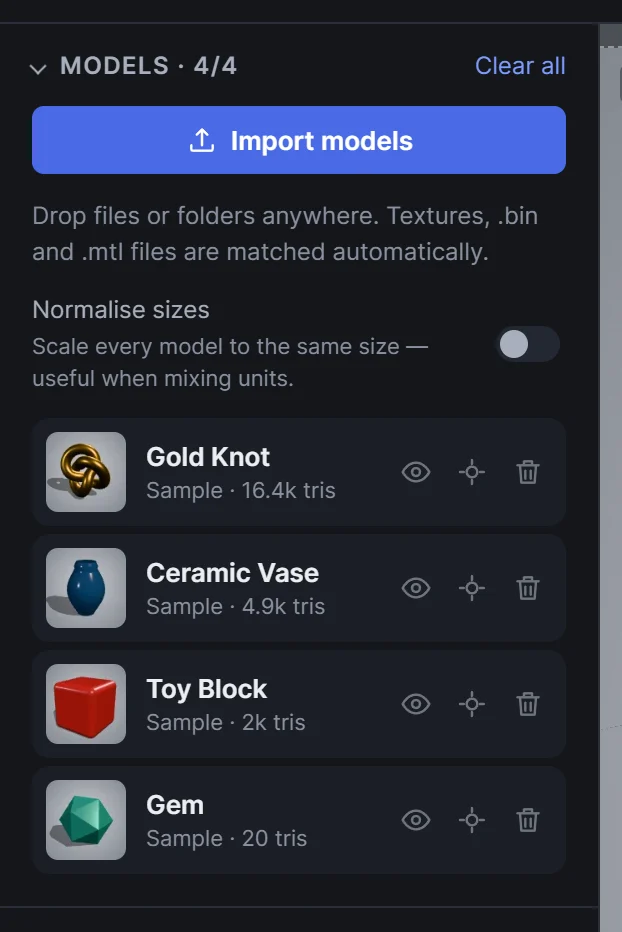 The Models list
Clear all, at the top right of the list, removes every model at once.
Select a model and see its details
Click a model's name to select it. Click it again, or press Esc, to deselect. You can also click a model directly in the viewport.
A selected model expands to show its details:
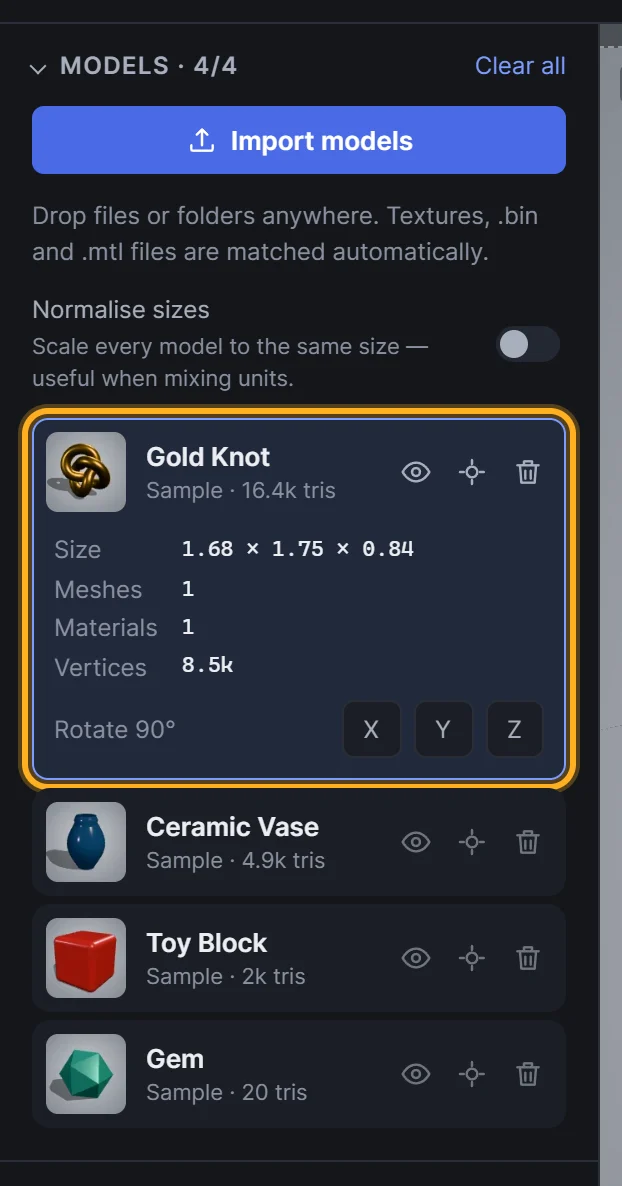 Model details for the selected model
| Detail | Meaning |
|---|---|
| Size | Width × height × depth, in the units the file was exported in |
| Meshes | How many separate mesh parts the model contains |
| Materials | How many materials it uses |
| Vertices | The vertex count, a quick guide to the model's complexity |
| Topology | Shown when the wireframe override is on: the number of quads and other polygons. See wireframe renders |
Tip: double-click a model's name to select it and frame the camera on it in one go.
Hide, focus and remove
Each row has three buttons on the right:
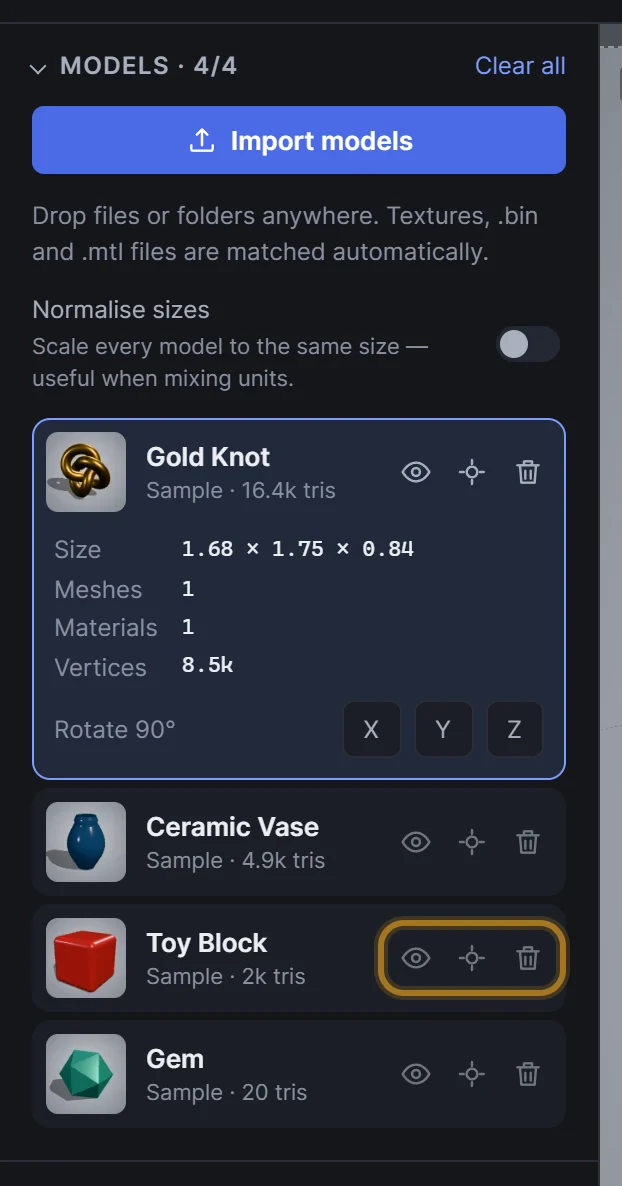 Hide, focus and remove
- Eye: hide or show. Hidden models disappear from the viewport and are left out of every export, including Export → Individual thumbnails.
- Target: focus camera. Selects the model and frames the camera on it, keeping your current angle.
- Bin: remove. Removes the model from the studio. Your file on disk isn't affected.
Here the Gem is hidden. Its row is dimmed, the header now reads 3/4, and it's gone from the scene:
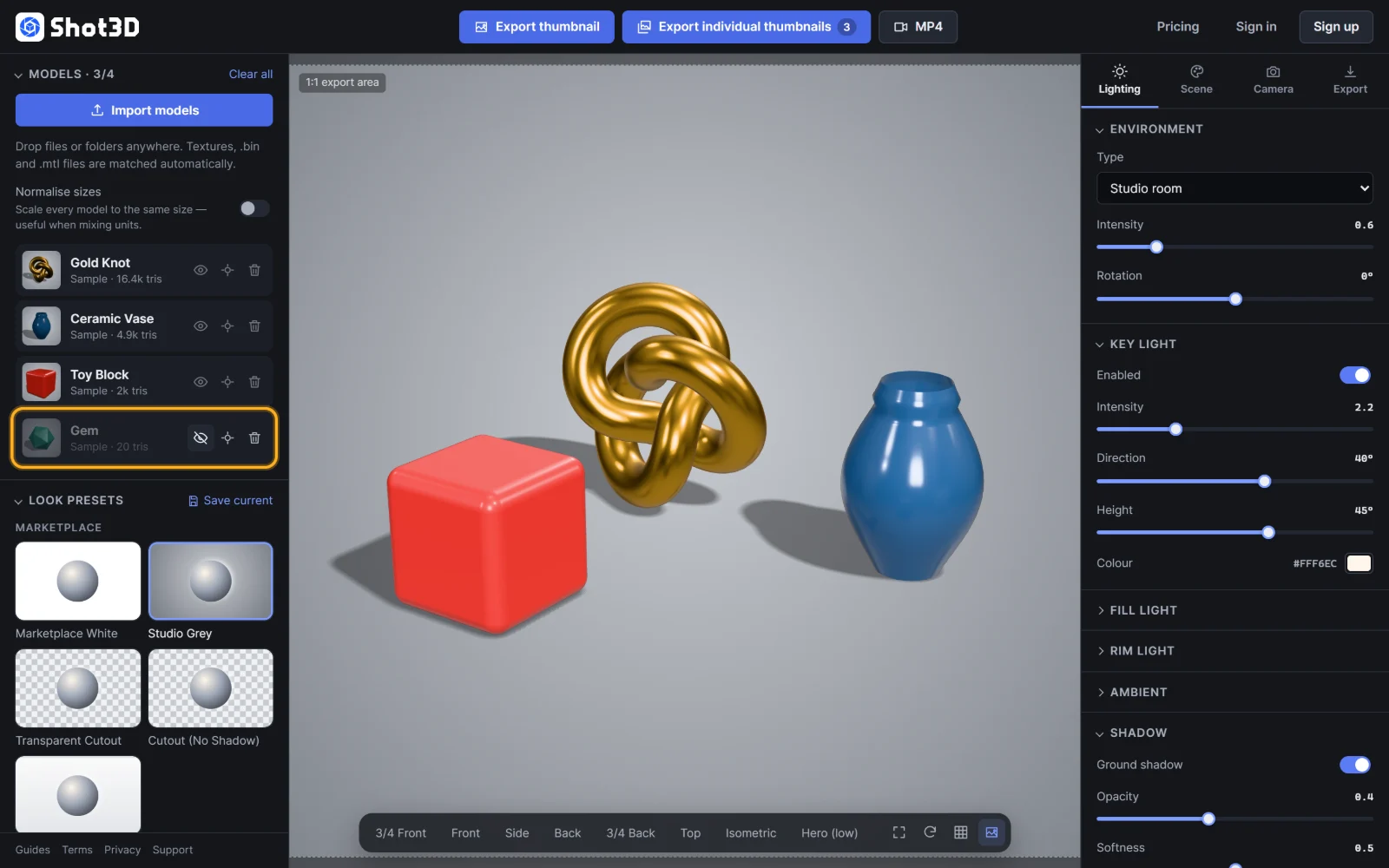 A hidden model is excluded from exports
Keyboard shortcuts for the selected model: H hides or shows it, and Delete or Backspace removes it.
Rotate a model 90°
Some models import lying on their side or facing the wrong way, often because the 3D software they came from uses a different "up" axis. Select the model, then use the Rotate 90° buttons to turn it a quarter turn around the X, Y or Z axis:
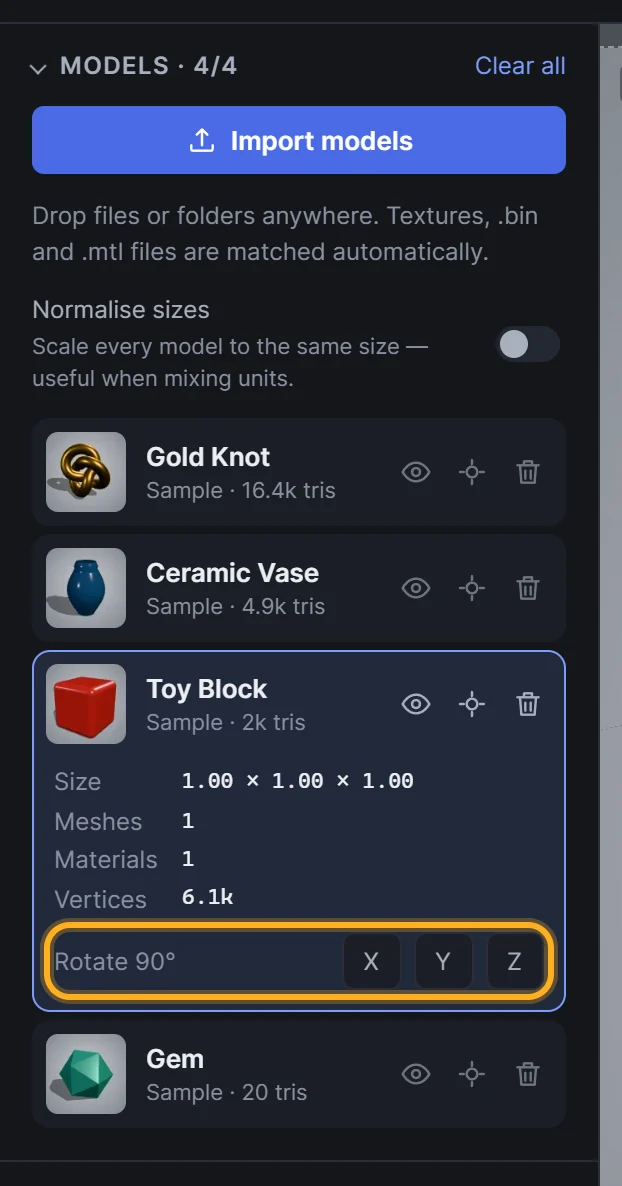 Rotate 90° around X, Y or Z
The model stays on the ground as it rotates, and its preview in the list updates.
Normalise sizes
Models from different sources are often exported in different units: one in millimetres, another in metres. Side by side, one looks enormous and the other tiny. Turn on Normalise sizes to scale every model to a comparable size:
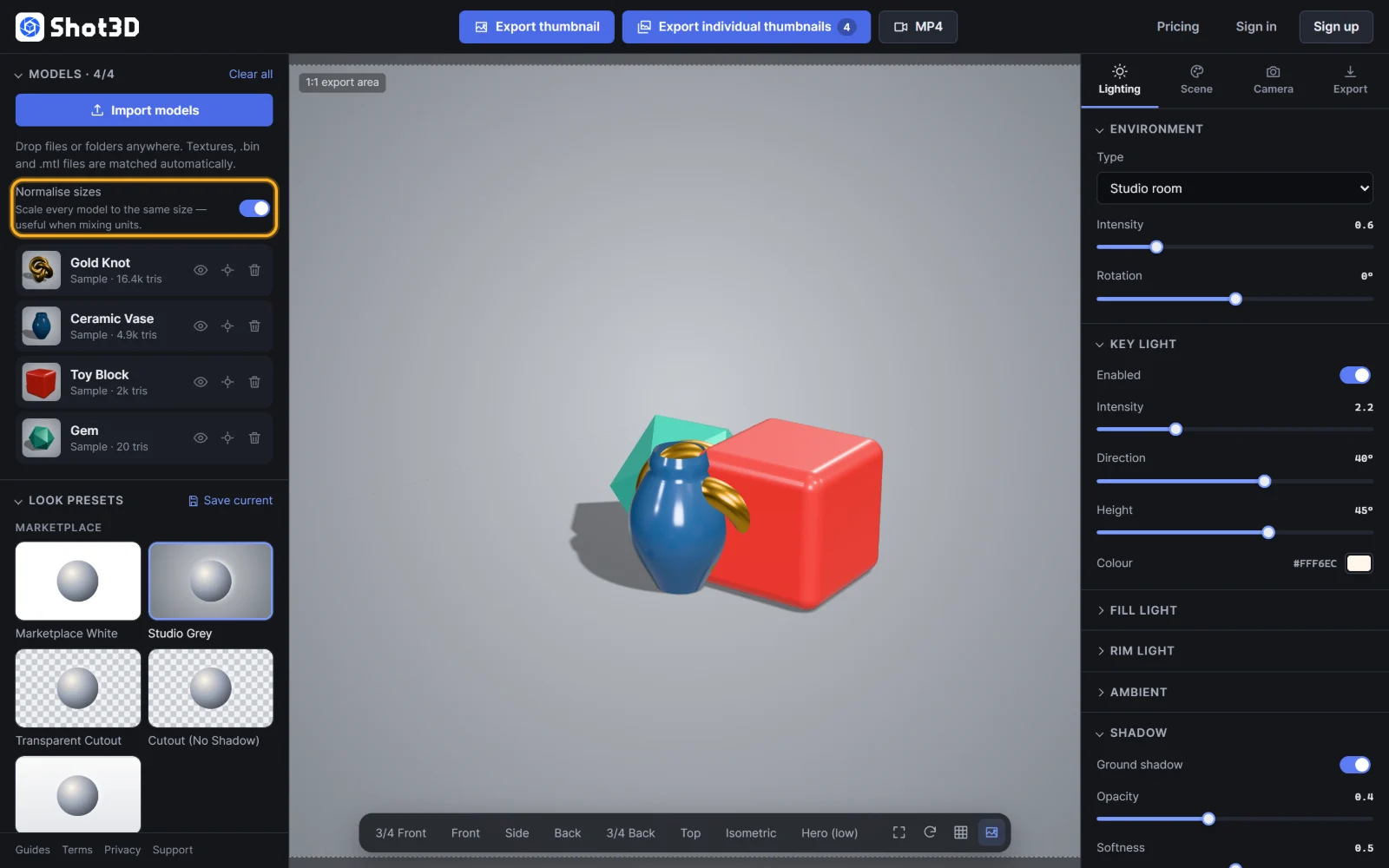 Normalise sizes
This only changes how the models are shown in Shot3D. Your files aren't changed. Turn it off to see the original scales.
Hidden models, turns and Normalise sizes are all kept when you save a project: see Saving and opening projects.
Frequently asked questions
How do I exclude a model from my exports?
Hide it with the eye button in its row, or select it and press H. Hidden models are skipped by every export.
My model is lying on its side. How do I stand it up?
Select it in the Models list and click X (or Z) under Rotate 90° until it's upright.
Does removing a model delete my file?
No. Removing a model only takes it out of the studio. The file on your computer is untouched.