
Importing 3D models into Shot3D
In short: drag your model files, or a whole folder, onto the Shot3D viewport, or click Browse files / Import models. Shot3D reads GLB, glTF, FBX, OBJ, STL, PLY and 3MF, and matches textures,
.binand.mtlfiles automatically. Everything is loaded locally in your browser: nothing is uploaded.
Supported formats
| Format | Notes |
|---|---|
| GLB / glTF | Recommended for textured models. Draco, Meshopt and KTX2 compression are supported. For .gltf, include its .bin and texture files |
| FBX | Materials and textures are read. Keeps your original quads for wireframes |
| OBJ | Include the .mtl file and textures for materials. Keeps your original quads for wireframes |
| STL | Common for 3D printing. Geometry only, no materials |
| PLY | Common for scans and photogrammetry meshes. Vertex colours are supported |
| 3MF | 3D printing format |
Option 1: Browse for files
When the studio is empty, click Browse files in the middle of the viewport:
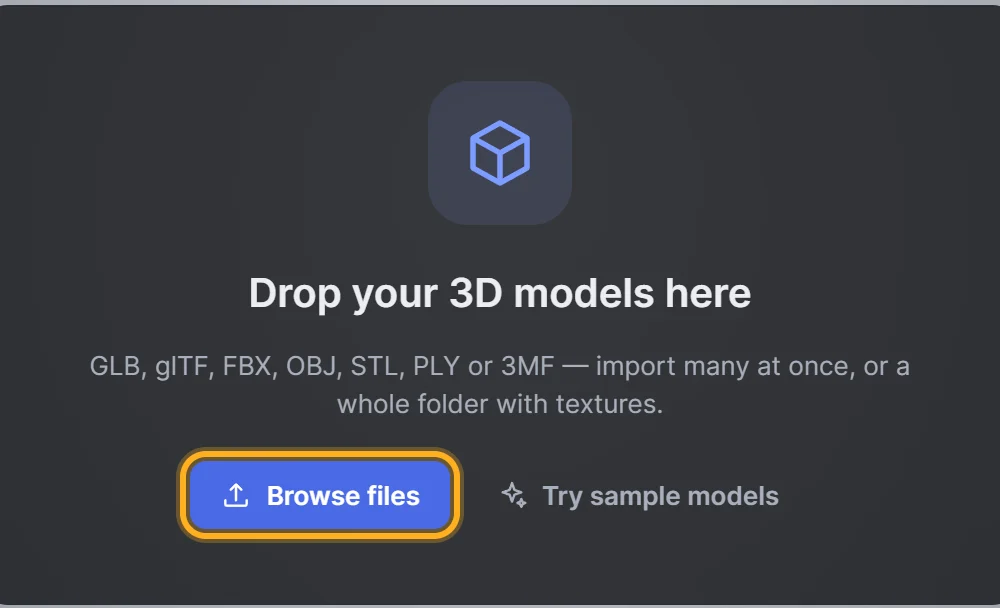 Browse files when the studio is empty
Your system's file picker opens. Select one or more model files, plus any texture, .bin or .mtl files they need, and click Open. You can select many files at once.
On a phone or tablet: tapping Browse files opens your device's full file browser, so you can pick models from your downloads, Google Drive, iCloud Drive or other storage. Select the model and its textures together.
Once you have models loaded, use the Import models button at the top of the library instead:
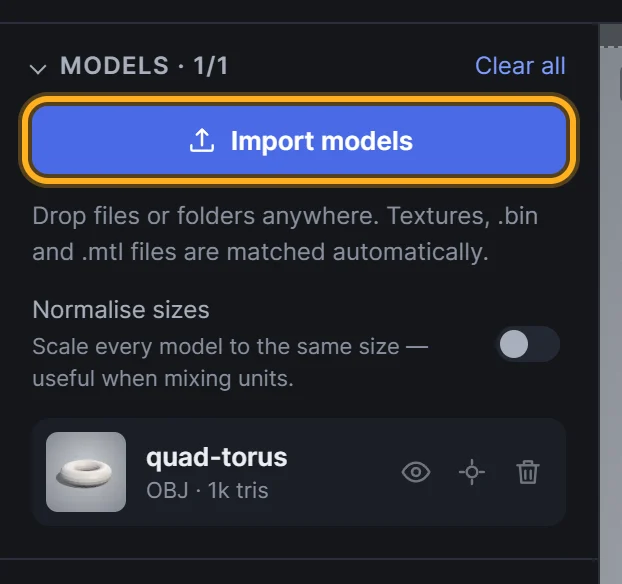 Import more models at any time
Option 2: Drag and drop
Drag files from your desktop or file manager anywhere onto the viewport. A Release to import overlay confirms the studio is ready:
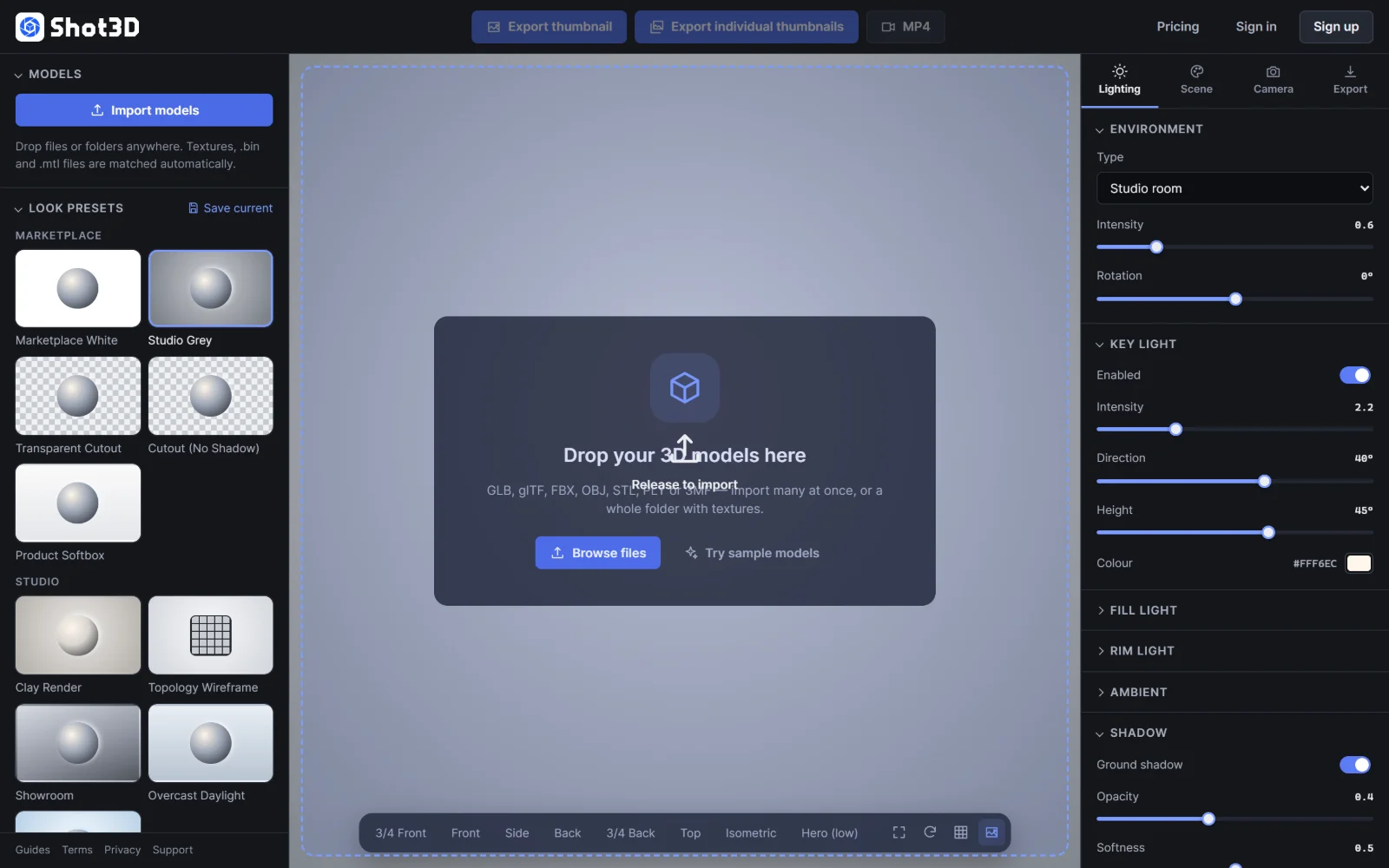 Drop files anywhere on the viewport
Release the mouse button to import.
Option 3: Drop a whole folder
You can also drag a folder onto the viewport. Shot3D searches it, including sub-folders, imports every model it finds, and matches each model's textures, .bin buffers and .mtl materials by file name. This is the quickest way to bring in a whole asset pack.
What happens next
A progress dialog shows each file as it loads. When it's done, a message confirms how many models were imported, and they appear in the viewport and the Models list:
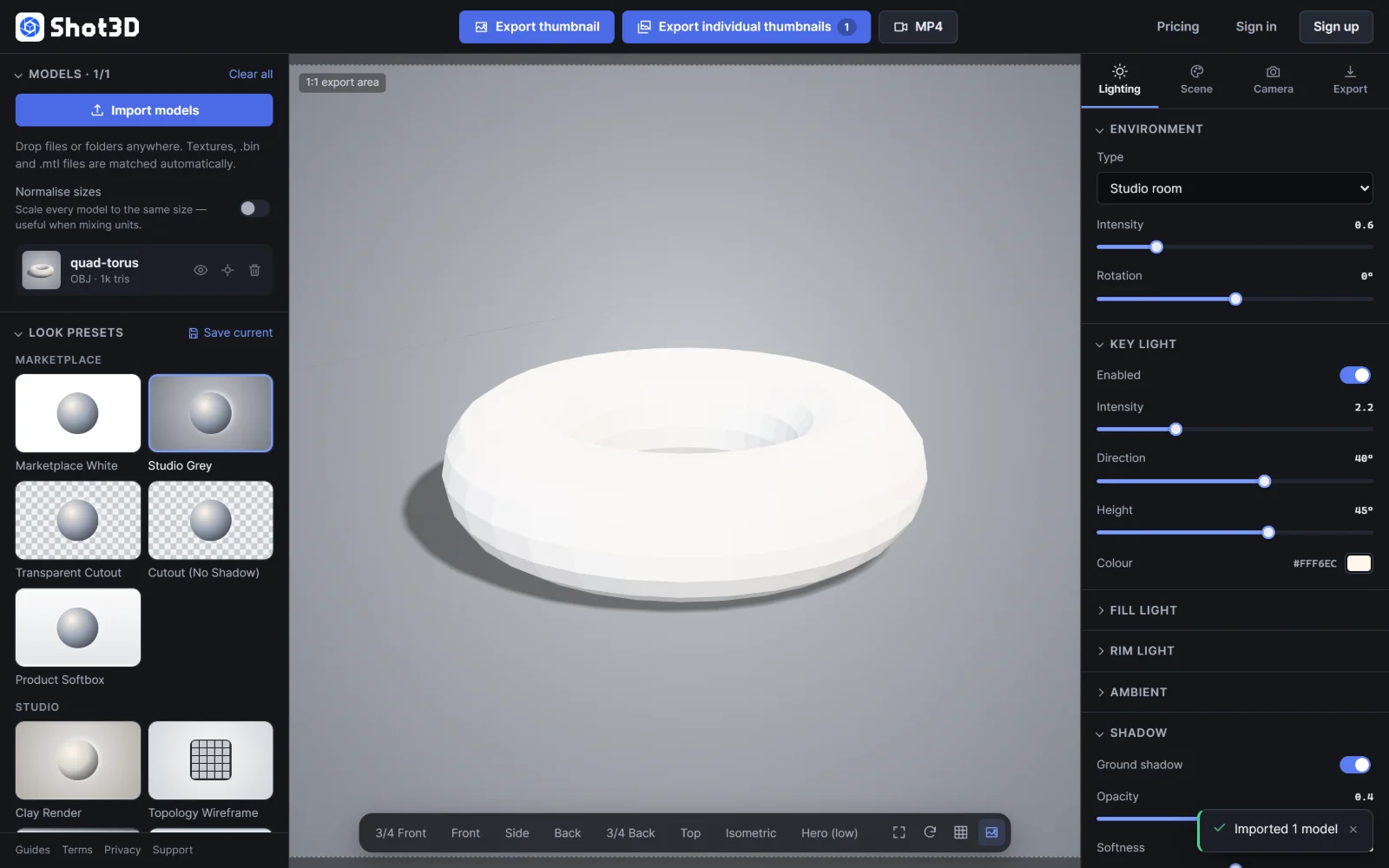 An imported model, ready to style
Each model is centred, placed on the ground and arranged in a neat grid alongside the others, and the camera frames everything automatically. Each model in the list shows a small preview, its format and its triangle count.
To pick up where you left off next time, save the models as a project: see Saving and opening projects.
Try the sample models
Don't have a model to hand? Click Try sample models on the empty studio to load four demo objects:
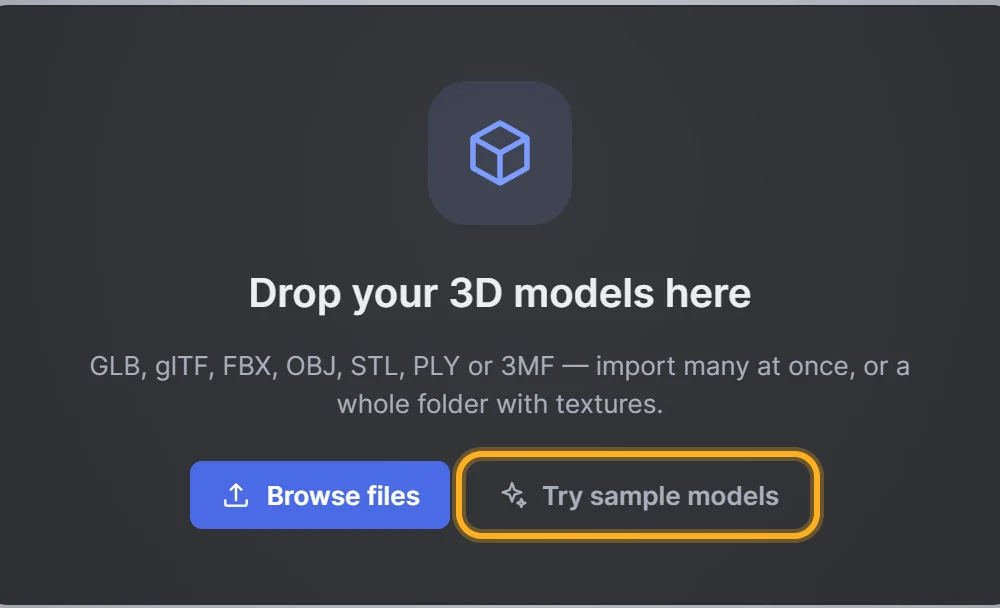 Load four demo models
Fixing import problems
- "Couldn't load…": the file may be damaged, or in a variant the loader can't read. Re-export it from your 3D software, ideally as GLB.
- "No supported models found": none of the files you dropped were GLB, glTF, FBX, OBJ, STL, PLY or 3MF.
- Missing textures (the model looks grey or pink): the textures weren't included. Drop the model together with its texture files, or drop the folder that contains them. For glTF, also include the
.binfile. - One model is huge or tiny next to the others: each model is centred and placed on the ground automatically, but keeps the scale it was exported with. Turn on Normalise sizes (see managing models) to show them at a comparable size.
- The model is lying on its side: some programs use a different "up" axis. Select the model and use Rotate 90° (see managing models).
- Very large files: everything loads into your computer's memory, so very high-polygon models or 8K textures may take a while on modest hardware.
Frequently asked questions
Are my files uploaded when I import them?
No. Files are read directly by your browser and rendered on your device. Shot3D never receives them.
Can I import several models at once?
Yes. Select or drop as many files as you like, or drop a whole folder. Every model is added to the Models list.
Which format should I use?
GLB is the most reliable for textured models because geometry, materials and textures are in one file. Use FBX or OBJ when you want an exact quad wireframe.