
Wireframe renders: quads, triangles, shaded and X-ray
In short: in the Scene tab, set Material override to Wire. Choose Edges: Quads & n-gons to show your modelling topology (exact for FBX and OBJ), or Triangles to show every triangle. Choose Style: Shaded (solid, hidden edges removed) or X-ray (see-through). Then set the wire and surface colours and the line thickness. Select a model to see its quad and polygon count.
For why true quad wireframes matter to buyers, see our guide to rendering a true wireframe. This tutorial covers the controls.
Turn on the wireframe
Open the Scene tab and click Wire under Material override:
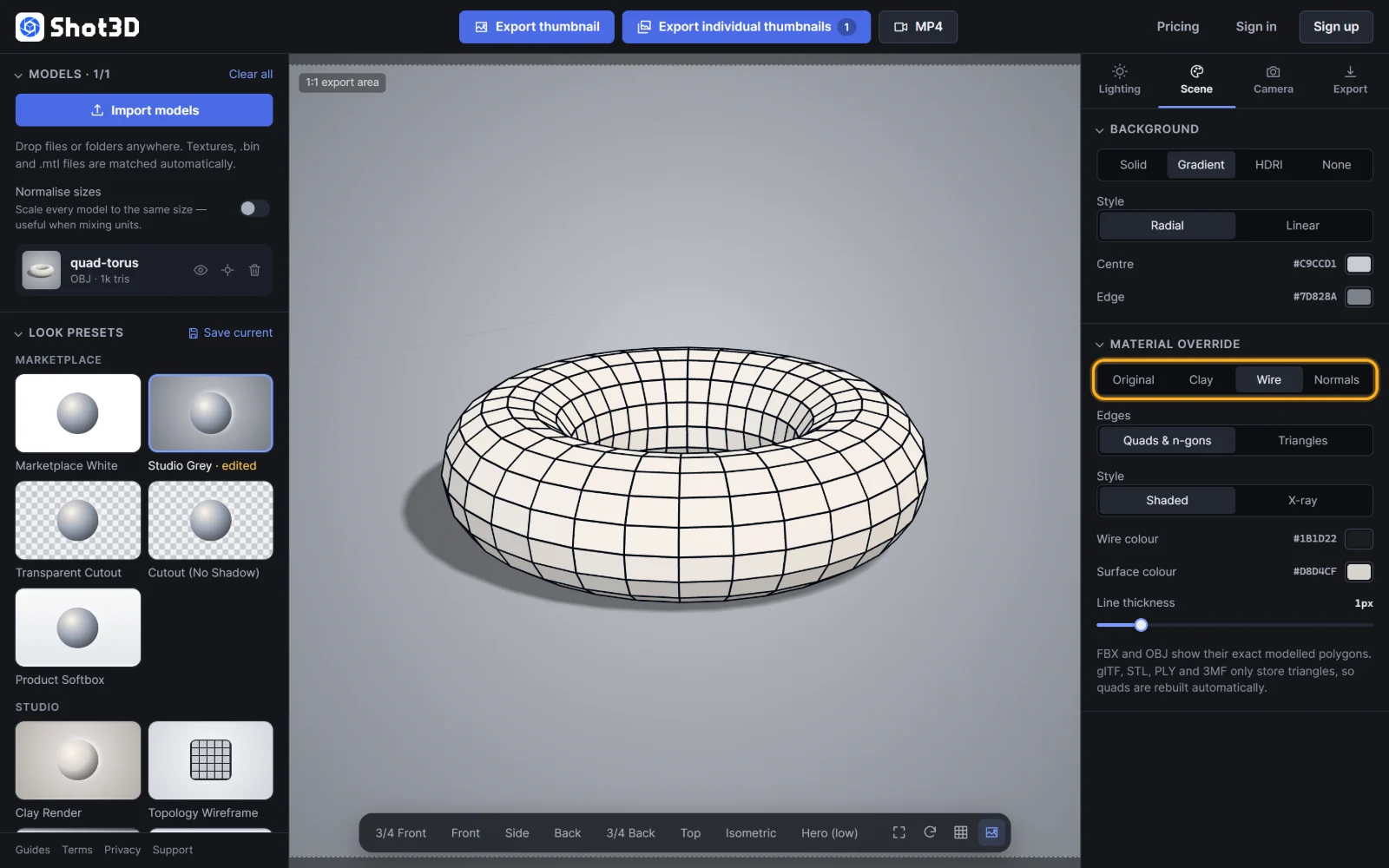 The wireframe override
This example is an OBJ file, so Shot3D shows its exact quads: a clean grid, with no diagonal lines.
Wireframe settings
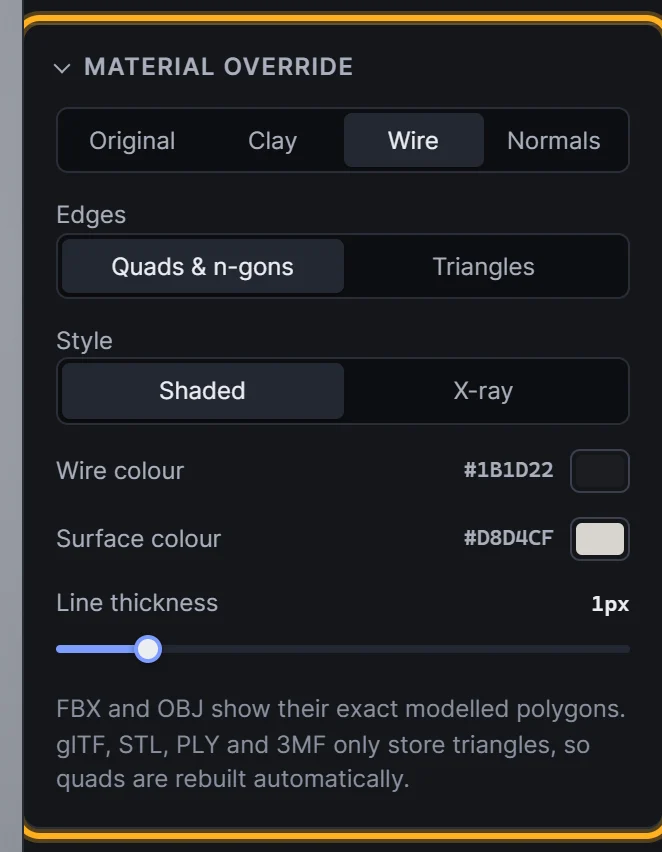 Wireframe settings
| Setting | Options |
|---|---|
| Edges | Quads & n-gons (your modelling topology) or Triangles (every triangle edge) |
| Style | Shaded (a solid surface; edges at the back are hidden) or X-ray (see-through; every edge is visible) |
| Wire colour | The colour of the lines |
| Surface colour | The colour of the solid surface (Shaded style only) |
| Line thickness | 0.5 to 4 px. Lines scale with the export resolution, so large exports look like the viewport |
Quads or triangles?
Quads & n-gons hides the diagonal edges that split each polygon into triangles for display, so you see the topology as it looks in Blender, Maya or 3ds Max. How exact it is depends on the format:
- FBX and OBJ: exact. Shot3D reads the original polygons from the file.
- GLB, glTF, STL, PLY and 3MF: these formats only store triangles, so Shot3D rebuilds the quads by pairing up triangles.
Triangles shows every triangle edge, as the graphics card draws it. Use it to show a game-ready, triangulated mesh:
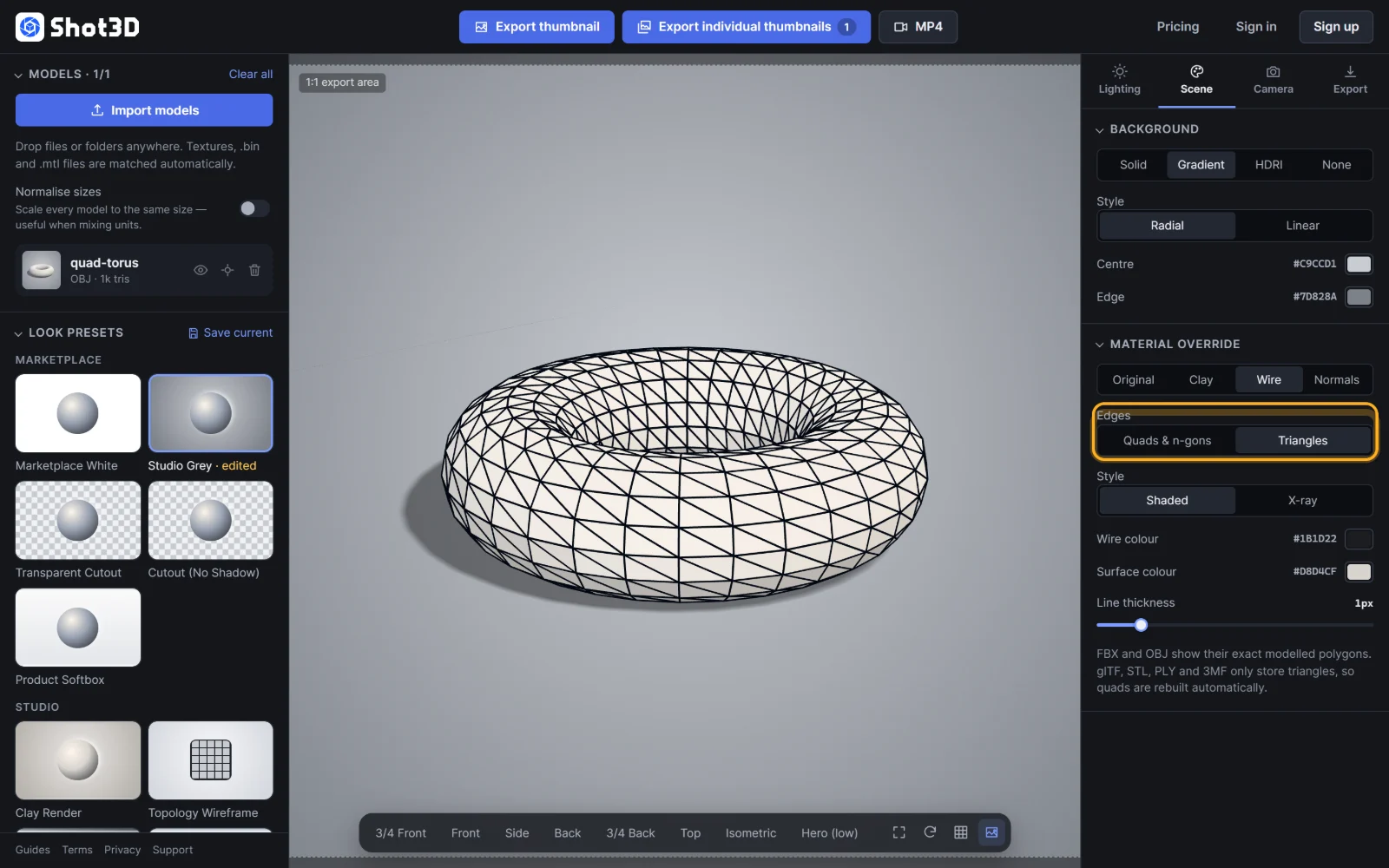 Edges: Triangles
Shaded or X-ray?
Shaded draws the lines on a solid surface and hides edges at the back. It's the clearest style for most models.
X-ray makes the surface see-through, so every edge is visible, front and back:
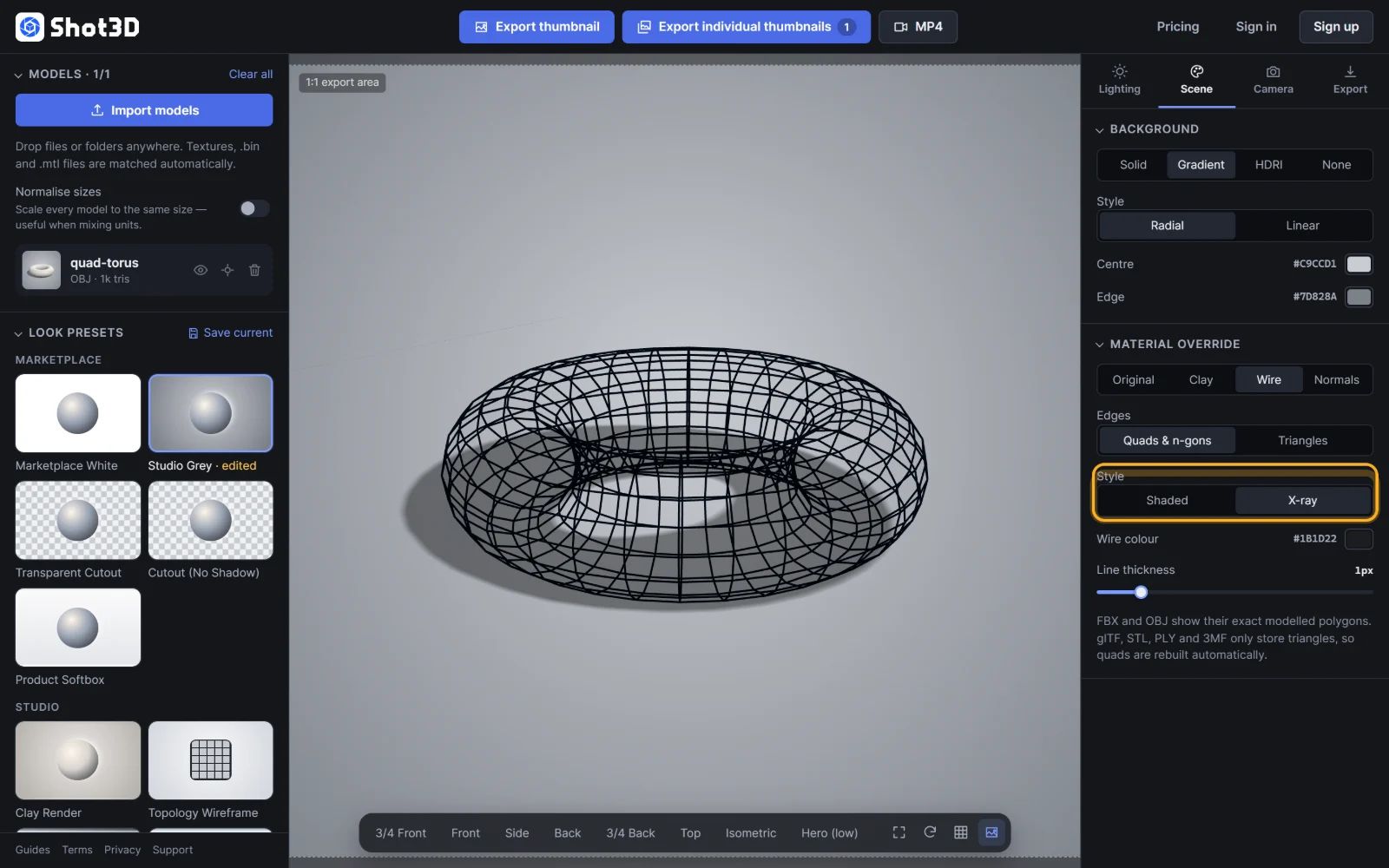 Style: X-ray
X-ray looks striking on simple and mid-poly models, but can get busy on dense meshes.
Check the topology stats
With the wireframe on, select a model in the Models list to see its Topology:
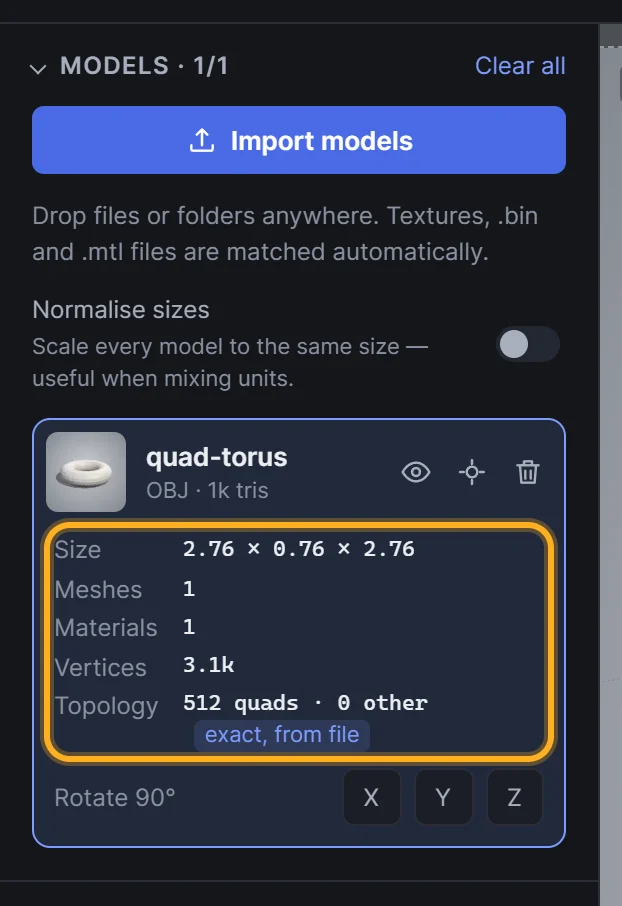 Topology stats for the selected model
It shows the number of quads and other polygons (or triangles, in Triangles mode), with a badge telling you where the topology came from:
- exact, from file: read directly from your FBX or OBJ file
- partly from file: some parts were exact and others rebuilt
- quads rebuilt: reconstructed from triangles
Hover over the numbers to see the total edge count.
Wireframe presets
Two presets set everything up in one click:
- Topology Wireframe (Studio group): a dark wire on a light, matte surface. The modelling-viewport look, ideal for listings.
- Blueprint Wire (Stylised group): a light X-ray wire on blueprint blue, striking for hero images and social posts.
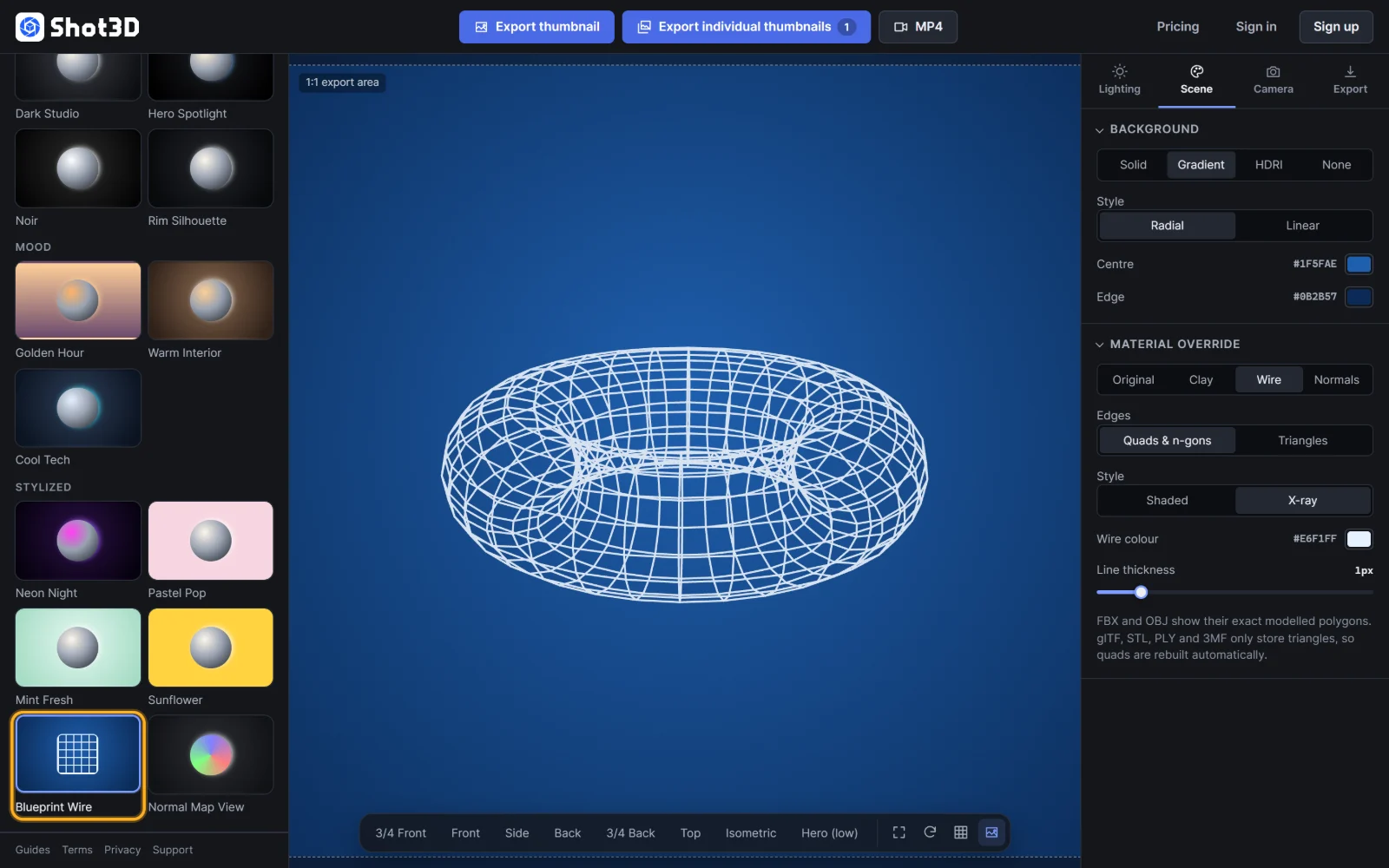 The Blueprint Wire preset
Frequently asked questions
Why does my GLB wireframe show some triangles?
GLB and glTF files only store triangles, so Shot3D rebuilds quads from them. Areas that were triangles or n-gons in your modelling software, or where the rebuild isn't certain, stay as triangles. Import an FBX or OBJ version for an exact wireframe.
How do I make wireframe lines thicker in my export?
Increase Line thickness. Thickness scales with the export resolution, so what you see in the viewport is what you get in the PNG.
Can I export a wireframe turntable?
Yes. Turn on the wireframe, then choose Export → Turntable video. See exporting a turntable video.