
Clay renders, 3D print previews and normal views (material overrides)
In short: in the Scene tab, the Material override section temporarily replaces every model's materials. Original shows your own materials. Clay shows a uniform matte material, ideal for showing form and sculpt detail, with adjustable colour and roughness. Normals colours the surface by direction for a technical breakdown. Wire is covered in wireframe renders. Your files are never changed.
Find the material override
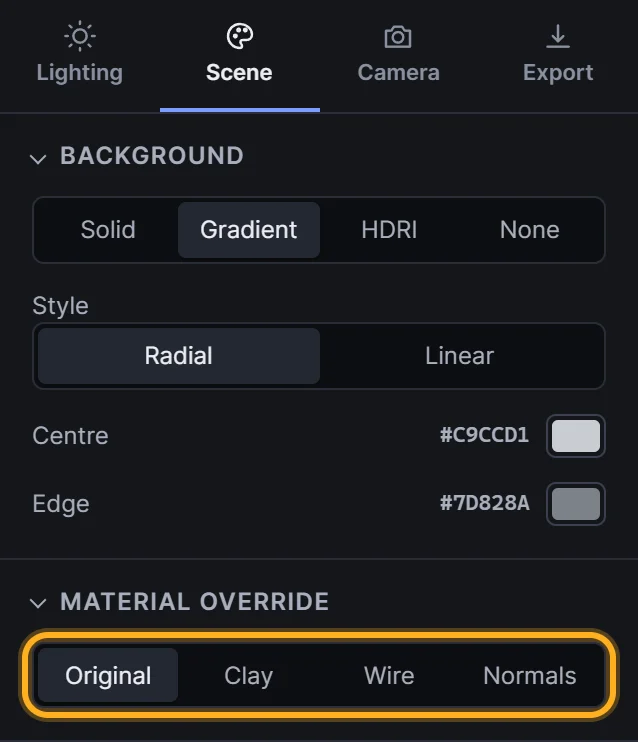
Open the Scene tab and find Material override, below Background:
 Material override
It's set to Original by default, which shows each model's own materials and textures.
Clay
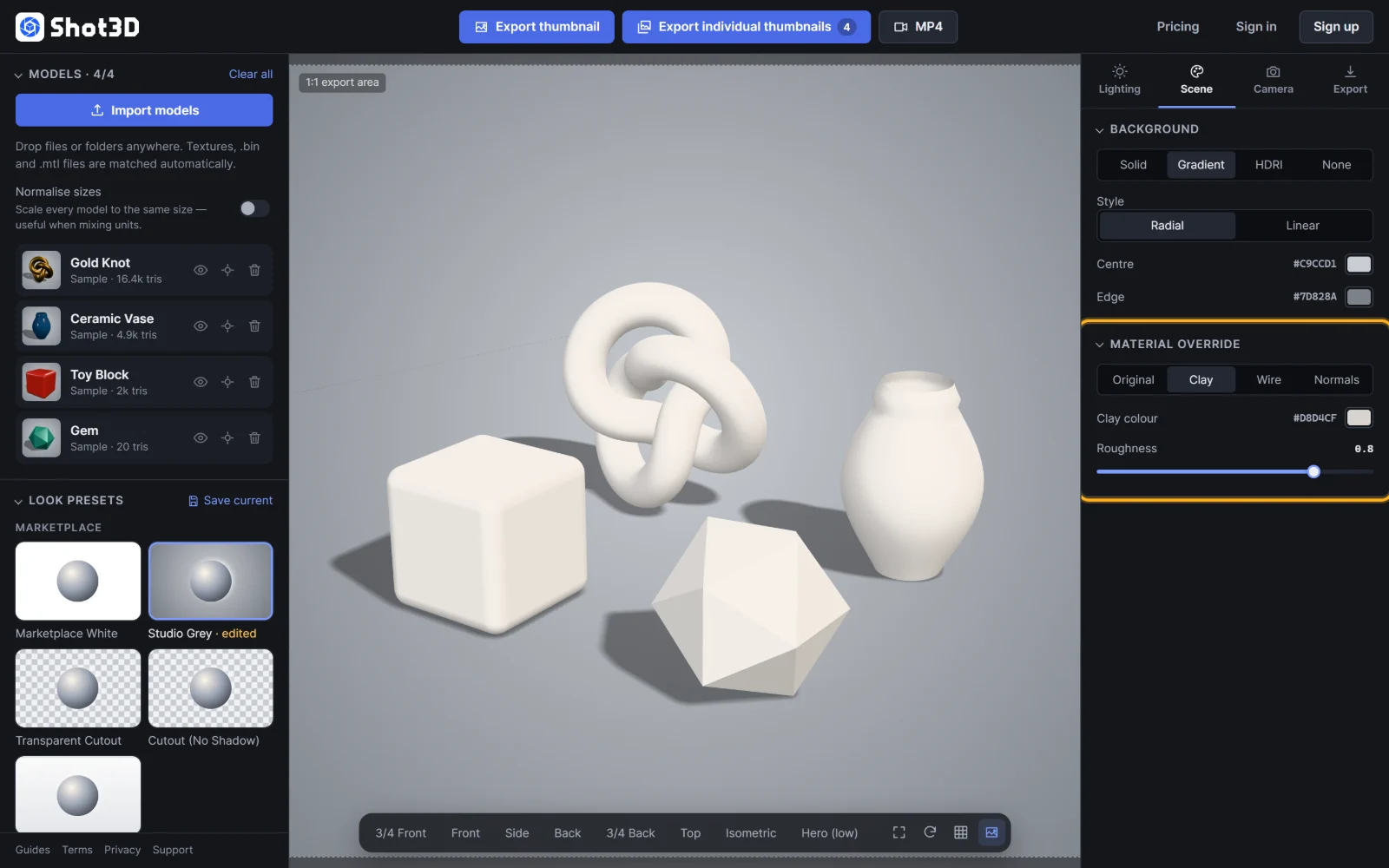
Click Clay to give every model the same smooth, matte material:
 Clay override
A clay render strips away colour and texture so buyers can judge the form: silhouette, proportions, surface smoothness and sculpted detail. It's a staple of character, creature and product portfolios, and an honest second image for marketplace listings.
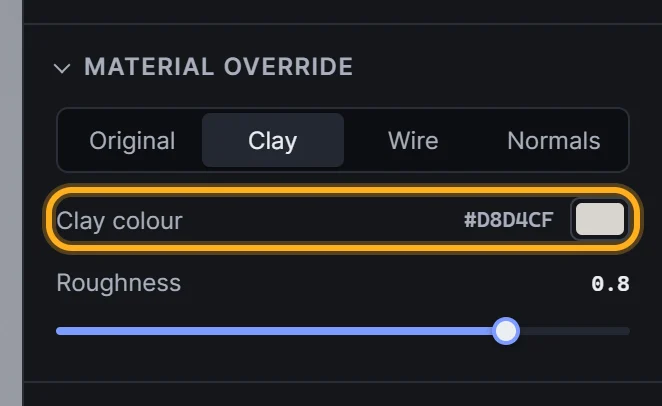
Clay has two settings:
 Clay colour and roughness
- Clay colour: the classic choices are light grey, warm off-white or terracotta.
- Roughness: high values (towards 1) are fully matte, like real clay. Lower values add a soft sheen that reveals surface curvature.
Tip: the Clay Render preset combines the clay override with lighting tuned to show form. Start there and adjust.
Print shows a model as a real FDM print, with a layer line for every layer. Click a Filament (PLA colours or glossy silk) or set a Custom colour, then set the Layer height, Printed height in mm and Finish. Each model gets the number of layers its printed height gives, so 50 mm at 0.2 mm is 250 layers. Layers always run horizontally, so rotate a model in the Models list to change its print orientation.
When layers are smaller than a pixel they blur into a satin sheen: select a model and press F, or export larger, to see them. For the full look, choose the 3D Print Light Box preset, or see the 3D print preview.
Normals
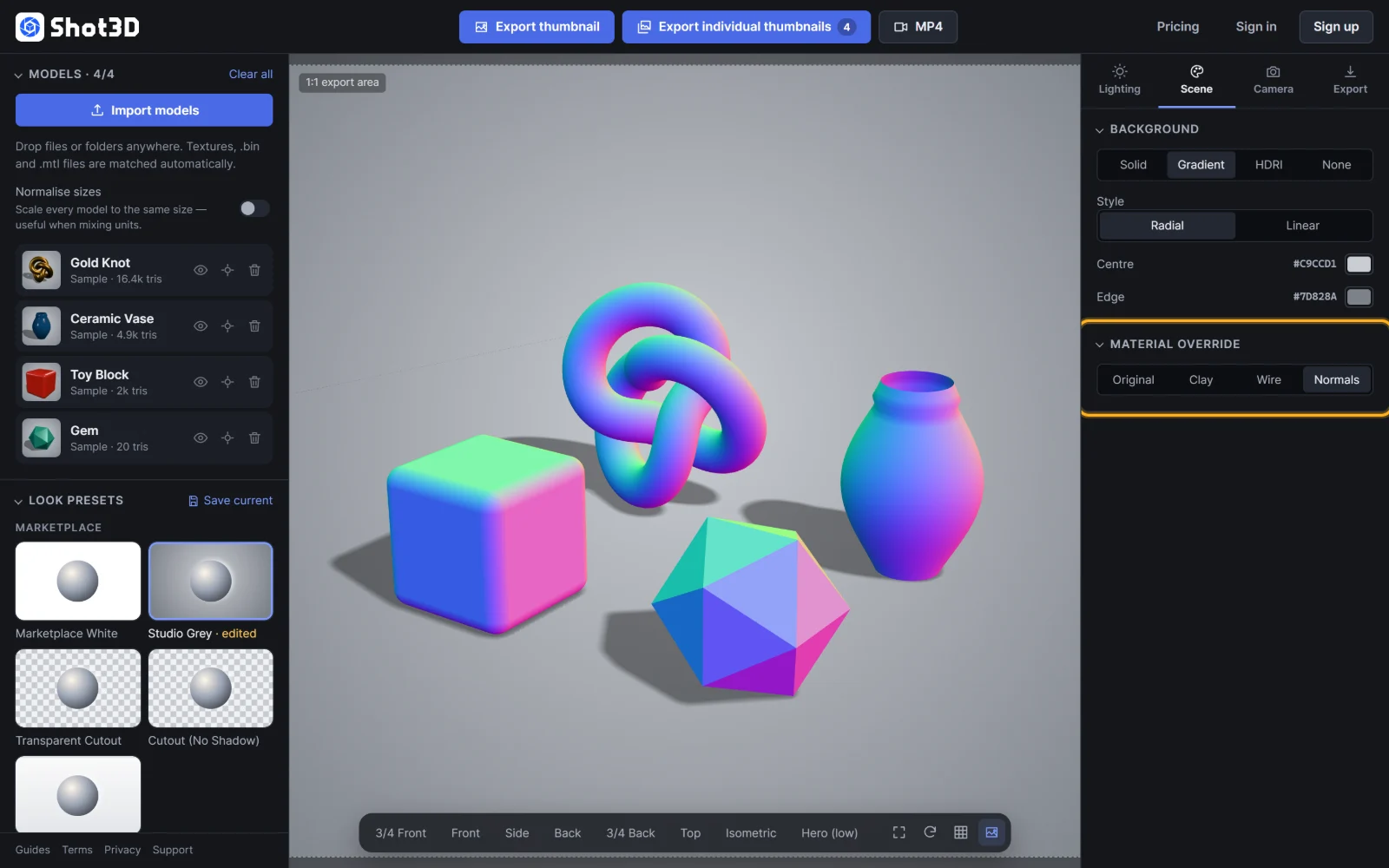
Click Normals to colour every surface by the direction it faces:
 Normals override
This is a technical view, familiar to game and 3D artists. It's useful for:
- showing that normals and smoothing are clean, with no flipped faces or shading seams
- technical breakdown images in portfolios and listings
- checking a model before selling it
The Normal Map View preset pairs this override with a dark backdrop.
Switch back
Click Original to return to your models' own materials. Overrides never change your files, and all export types (thumbnails, individual thumbnails and turntables) use whichever override is active.
Frequently asked questions
How do I make a clay render of my 3D model?
Open the Scene tab and set Material override to Clay, or apply the Clay Render preset. Then export as usual.
Does the clay override change my model files?
No. It's a display override only. Switch back to Original at any time.
Can I export a clay turntable video?
Yes. Turntable videos use whichever material override is active, so a clay turntable is just a clay override plus Export → Turntable video.