
CAD to marketing images: product visuals from your CAD files
Open the CAD image makerOpens at 1920 × 1080 px · Free · runs in your browser · files stay on your device
In short: export your design from your CAD software as a mesh (STL, 3MF or GLB), drop it into Shot3D, choose a look and export. You get clean images for your website, brochures and launch posts without a photo shoot or a rendering specialist. Unreleased designs stay on your own device, because nothing is uploaded.
Marketing often needs images before a product physically exists, and engineering already has the model. The gap is usually someone with the time and the rendering skills to turn a CAD file into a picture people want to look at.
First, export a mesh
Shot3D opens mesh formats. It doesn't open native CAD files or STEP directly, so export first:
| Export as | Choose it when |
|---|---|
| GLB | Your CAD tool can export it with colours and materials. This usually gives the best result |
| 3MF | You want a modern format, with units and often colours, from a CAD or printing workflow |
| STL | It's the only option. It has no colours, so the model renders in a single material |
| OBJ | You need materials, and your tool doesn't offer GLB |
Most CAD tools, including SolidWorks, Fusion, Onshape and FreeCAD, can export at least one of these, directly or through an add-on. Menus differ, so look under Export or Save As.
Choose a fine mesh setting. Curved surfaces turn into small flat facets when exported. A coarse export shows these on highlights, so pick a higher quality setting if your tool offers one, and check the result before making your final images.
How to make the images
- Export your model as above.
- Open the image maker. It opens with Marketplace White at 16:9, 1920 × 1080.
- Drop in the model. If it's lying on its side, as Z-up CAD exports often do, click it in the Models list and use the Rotate 90° buttons.
- Colour it, if needed. For a single-colour export, try the Clay material override with your product's colour, or a Clay Render look.
- Pick your angles and export. Press 1 for 3/4 Front, or 7 for an isometric view, which suits technical products. Then choose Export → Thumbnail.
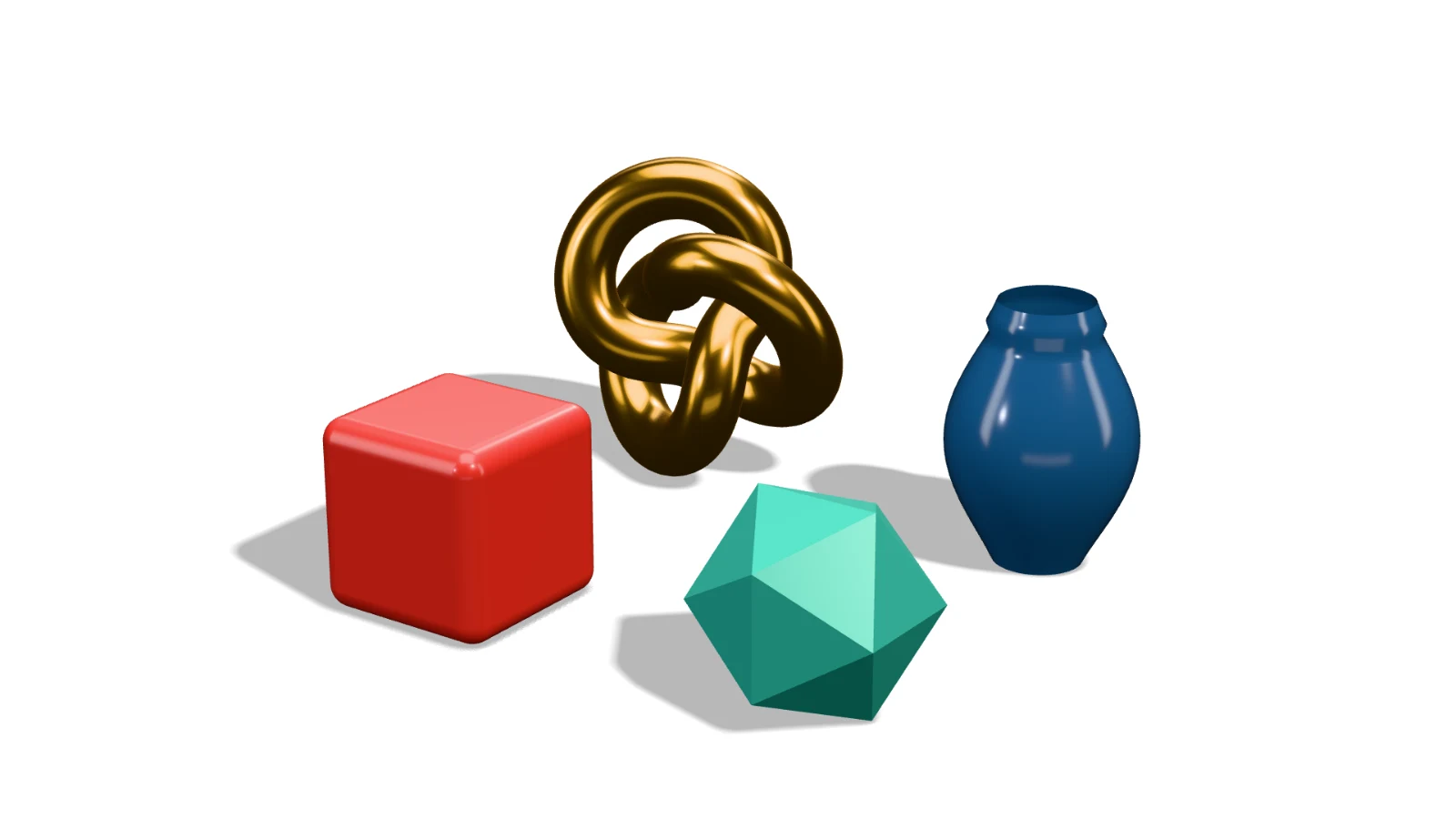 A real export from the image maker's settings
Images marketing tends to need
| Use | Try |
|---|---|
| Website hero | Dark Studio or Hero Spotlight at 16:9 |
| Product page and catalogue | Marketplace White from several angles |
| Brochure or slide | Transparent Cutout, to place on your own layout |
| Social post | 4:5 or 9:16. See social media images |
| Launch video | A 360° turntable, on Pro and Studio |
Keep it accurate
A render shows what a design should look like, not a finished product. Colours and surface finishes in particular can differ from what comes off the production line. If an image could lead customers to think they're seeing the real product, make sure it represents what they'll receive.
Frequently asked questions
Can Shot3D open STEP, SolidWorks or Fusion files?
Not directly. Export GLB, 3MF, STL or OBJ from your CAD software first. Shot3D opens GLB, glTF, FBX, OBJ, STL, PLY and 3MF.
Why does my model look faceted?
The export setting was too coarse. Export again at a finer quality from your CAD tool.
Are my CAD files uploaded?
No. They're opened and rendered in your browser, on your own device. That's useful for unreleased designs, although you should still follow your company's own rules on handling them.
Is it free?
Yes, for up to 10 exports a day with a free account (3 without one), up to 1,024 px with a small Shot3D label. Pro (£10/month, or £1 for a 3-day trial with 25 exports) removes the label and goes up to 4,096 px, which suits print and large screens.
Can it handle big assemblies?
It depends on your computer and the size of the export. If a large assembly runs slowly, export at a lower quality or remove parts that won't be seen.