
Roblox thumbnail maker: 1920 × 1080 experience thumbnails from 3D models
Open the Roblox thumbnail makerOpens at 1920 × 1080 px · Free · runs in your browser · files stay on your device
In short: export your build or characters from Roblox Studio as OBJ, open the thumbnail maker and drop them in. It opens with warm Golden Hour lighting at 16:9, 1920 × 1080, the size Roblox recommends. Frame the shot and click Export → Thumbnail. Everything renders in your browser.
Thumbnails sit at the top of your experience page and rotate on the home page, so they're where players decide whether to press Play. A lit, framed render of your best build or characters looks far more polished than a raw screenshot with the toolbar and avatar in the way.
Roblox thumbnail size
| Aspect ratio | 16:9 (widescreen) |
| Size | 1920 × 1080 px, as Roblox recommends |
| File types | PNG, JPG, GIF, TGA or BMP |
| Home page thumbnails | Under 3 MB, and you can have 2 to 5 active |
Roblox's thumbnail guide recommends 16:9 at 1920 × 1080. The thumbnail maker opens at that size. On the Free plan, PNGs are capped at 1,024 px wide (1024 × 576); Pro exports the full 1920 × 1080.
How to make a Roblox thumbnail
- Export from Roblox Studio. In the Explorer, select the models you want in the shot (hold Ctrl to pick several, or select a whole folder), right-click and choose Export Selection. Studio saves an
.objand.mtl; keep them together with any textures. - Open the thumbnail maker. It opens with the Golden Hour look and a 16:9, 1920 × 1080 export frame.
- Drop in your files. Each model is placed on the ground and framed automatically.
- Compose the shot. Drag to orbit, right-drag to pan and scroll to zoom. The export frame shows exactly what's captured. 8 gives a low, dramatic angle and 7 an isometric overview of a build.
- Choose Export → Thumbnail for the PNG. Make a few versions with different looks: Hero Spotlight for action, Neon Night for night-time or sci-fi games, Overcast Daylight for bright, friendly ones.
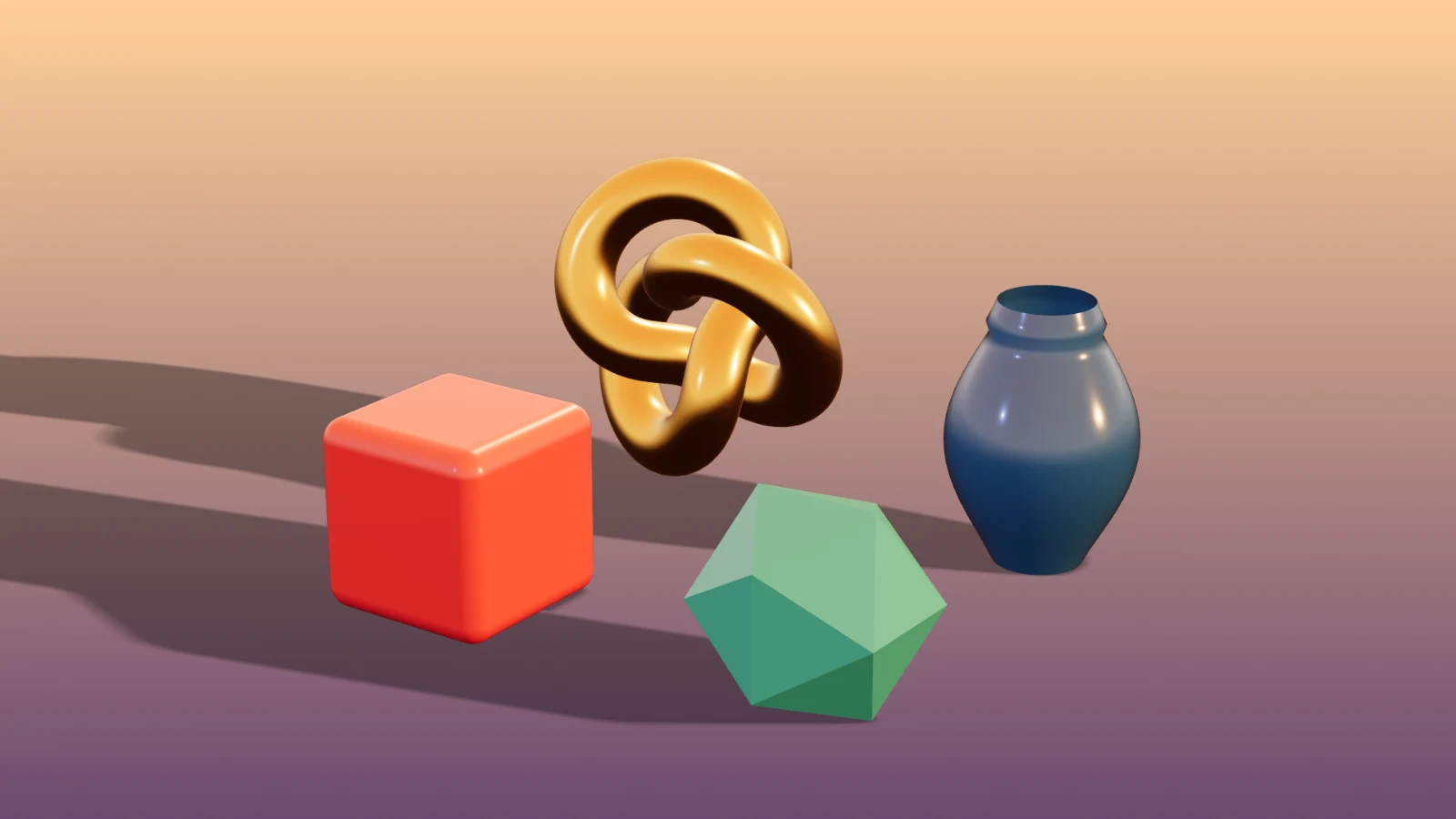 A real export from the thumbnail maker's settings
What makes a strong Roblox thumbnail
- Show what players do. A character mid-action, the build they'll explore or the item they'll unlock, rather than a logo on a plain background.
- Leave room for text. If you'll add a title, frame the model to one side so the other side stays clear. For full control, export with Transparent Cutout and place the render on your own background.
- Keep it readable when small. Thumbnails are often shown well below full size, so avoid tiny details.
- Test them. Upload several, and let Roblox's thumbnail personalisation and testing show which ones earn more plays.
Frequently asked questions
Can I make a Roblox thumbnail for free?
Yes, for up to 10 exports a day with a free account (3 without one). The Free plan exports 16:9 PNGs at 1024 × 576 with a small Shot3D label. Pro (£10/month) exports the full 1920 × 1080 with no label. Paid plans are for buyers aged 18 or over, or with a parent or guardian's permission.
Can I also make a video?
Yes. Pro and Studio export 360° turntable MP4s in 16:9, handy for trailers and social posts. See the turntable maker.
Can I use this for my game icon too?
Yes, use the Roblox icon maker: it's the same studio, set up for 512 × 512.
Are my Roblox models uploaded anywhere?
No. Models are rendered in your browser and the PNGs are saved straight to your device.