
3D model to transparent PNG: cut-out renders with no background
Open the transparent PNG toolFree · runs in your browser · files stay on your device
In short: open the tool, drop in your models and export. It opens with the Transparent Cutout look, so PNGs are saved with an alpha channel and a soft, semi-transparent ground shadow that looks natural on any background. For the model only, switch to Cutout (No Shadow). Works with GLB, glTF, FBX, OBJ, STL, PLY and 3MF, entirely in your browser.
A transparent PNG lets you place your model on anything: pack covers, marketplace banners, comparison graphics, social posts, or your own website. With a cut-out you never need to re-render when you change a design.
How to make a transparent PNG of a 3D model
- Open the tool. The studio opens with Transparent Cutout applied. The checkerboard in the viewport shows where the image will be transparent.
- Drop in your models, or a whole folder.
- Choose the angle and press F to frame.
- Export. Export → Thumbnail saves one transparent PNG; Export → Individual thumbnails saves a transparent PNG of every model in one ZIP.
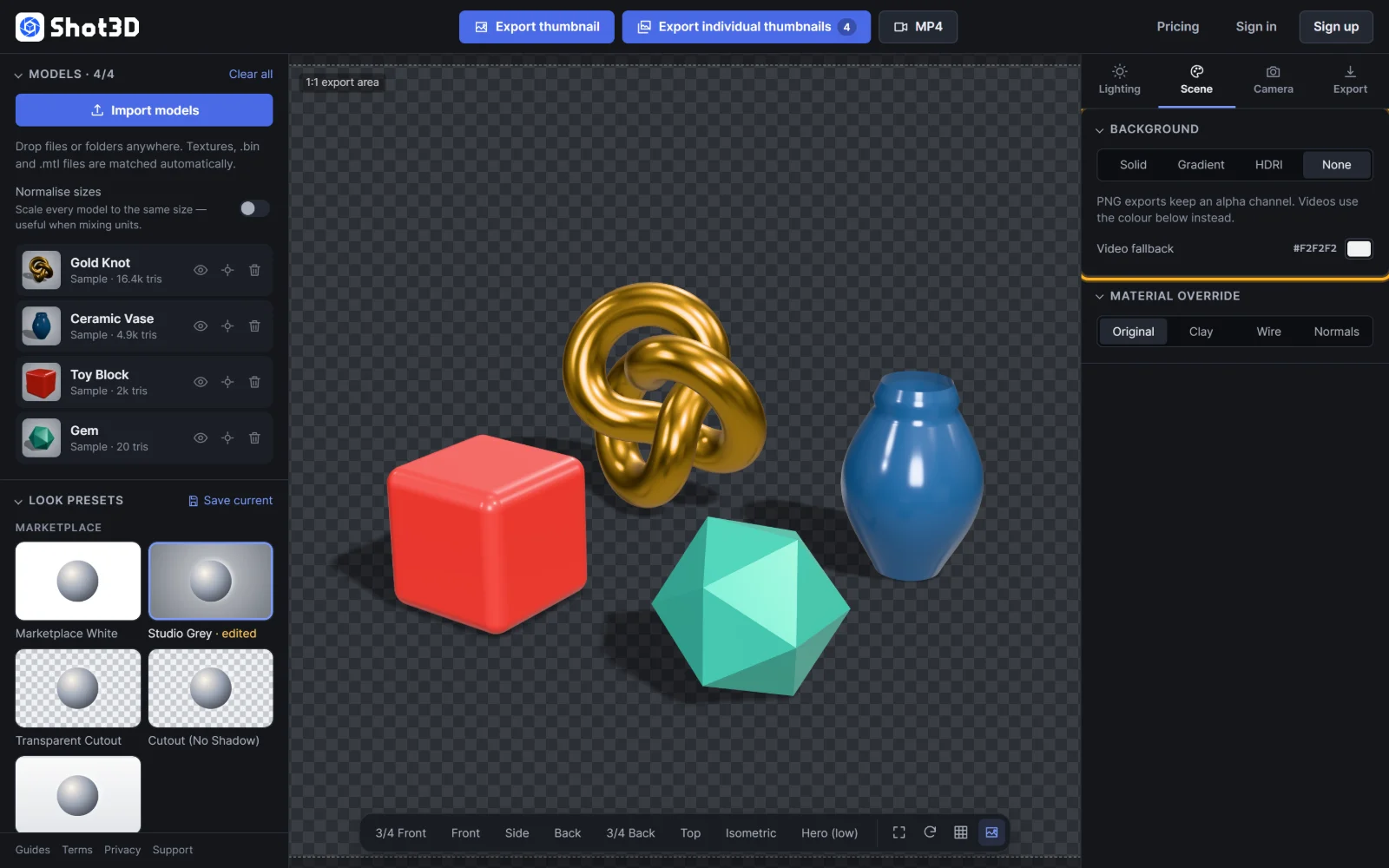 Background set to None: the checkerboard marks transparency
Shadow or no shadow?
| Look | Result | Best for |
|---|---|---|
| Transparent Cutout | Model plus a soft shadow in the alpha channel | Placing the model on a surface in a design, so it looks grounded |
| Cutout (No Shadow) | The model only | Icons, overlays and designs that add their own shadows |
You can also make any look transparent: set the background to None in the Scene tab. See backgrounds for every option.
Frequently asked questions
Do the PNGs really have transparency?
Yes. Exports keep a full alpha channel, including soft edges and the semi-transparent shadow, so they blend cleanly onto any colour.
Can I batch-export transparent PNGs?
Yes. With the transparent look applied, click Export → Individual thumbnails and every PNG in the ZIP keeps its transparency. Free exports up to 5 models at a time and 10 images a day, Pro up to 200 and Studio has no limit.
Can I make a transparent video?
No. MP4 video doesn't support transparency, so videos use a solid fallback colour instead. Use transparent PNGs for still images.
Are my models uploaded?
No. Models are rendered in your browser and the PNGs are saved straight to your device.