
Unity Asset Store key images: cover, card and icon renders of your 3D models
Open the Unity Asset Store image makerOpens at 3072 × 2048 px · Free · runs in your browser · files stay on your device
In short: open the image maker, drop in the FBX, OBJ or GLB models from your package and click Export → Thumbnail. It opens with the Showroom look at 3:2, 3072 × 2048, the same shape as the Asset Store's 1950 × 1300 cover and 420 × 280 card, so you only need to resize, never crop. Add your title in an image editor and upload.
Unity's key images decide whether anyone opens your listing. Unity's own guidelines rule out images that are only screenshots of the Unity Editor, so a lit, styled render of your assets is exactly what's needed.
Unity Asset Store key image sizes
| Image | Size | Shape | What it's for |
|---|---|---|---|
| Cover | 1950 × 1300 px | 3:2 | The top of your product page; title, logo and a tag line allowed |
| Card | 420 × 280 px | 3:2 | The thumbnail in search and browse; title and logo only |
| Icon | 160 × 160 px | 1:1 | Icon grid views; no text |
| Screenshots | At least 1200 px wide | Any | Your product page gallery |
These come from Unity's key image guidance. Key images must be exactly these sizes, and Unity suggests designing each one separately rather than shrinking one image.
How to make your key images
- Open the image maker. It opens with Showroom, a soft studio backdrop, at 3:2 and 3072 × 2048.
- Drop in the models you want to feature, straight from your package's folders. FBX, OBJ, GLB, glTF, STL, PLY and 3MF all work, and textures are matched automatically.
- Compose the cover. Arrange the camera so the hero assets fill the frame, leaving space for your title if you'll add one. The export frame shows exactly what's captured.
- Export, then resize to 1950 × 1300 for the cover in any image editor. Because both are 3:2, nothing is cropped.
- Make the card separately. At 420 × 280 the card is tiny, so frame it tighter, on one or two hero assets, and export again.
- For the icon, switch the aspect ratio to Square 1:1, frame a single asset and export; then resize to 160 × 160.
- Screenshots: use Export → Individual thumbnails to get a framed render of every model in the pack in one ZIP.
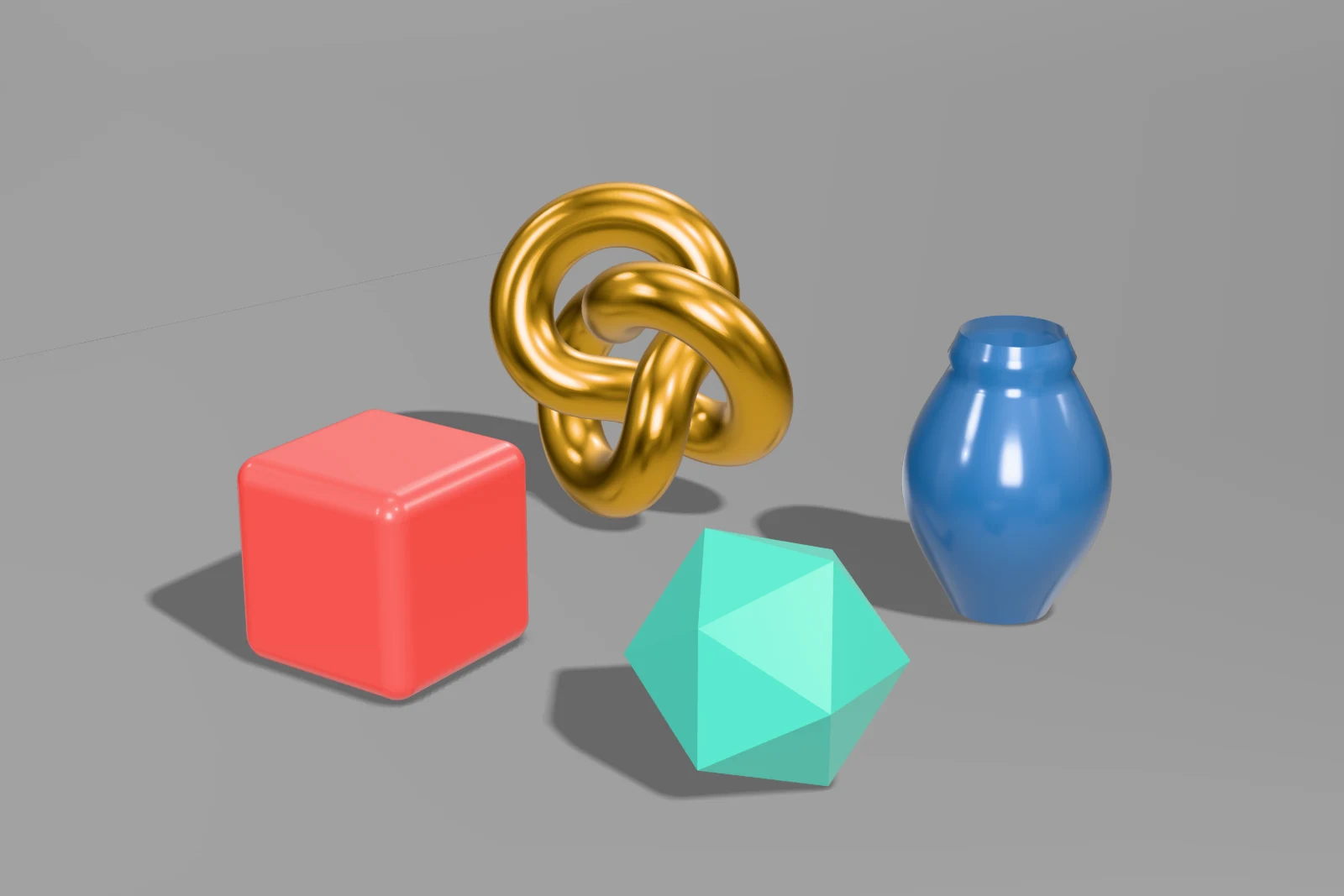 A real export from the image maker's settings
Tips
- Match your art style. Try Dark Studio or Hero Spotlight for dark fantasy and sci-fi packs, and Pastel Pop or Overcast Daylight for stylised or casual ones.
- Keep it consistent. Save your look as a custom preset so the cover, card and screenshots all match, and so your next package does too.
- Show the topology. Buyers of game-ready assets want to see it, and the Topology Wireframe look shows your real quads.
On Pro and Studio, Export → Listing kit with Unity Asset Store selected renders the cover, card and icon at their exact sizes, with no resizing, plus 1920 × 1280 screenshots, in one ZIP. See exporting a listing kit.
Frequently asked questions
Which plan do I need?
A free account gives you 10 exports a day, up to 1,024 px (1024 × 682 at 3:2), which is enough for the 420 × 280 card and the 160 × 160 icon. For the 1950 × 1300 cover and 1200 px screenshots without a watermark, use Pro (£10/month, or £1 for a 3-day trial with 25 exports), which exports up to 4,096 px.
Can I render my Unity prefabs directly?
Not directly: Shot3D reads model files, not Unity prefabs or shaders. Drop in the FBX or OBJ files your prefabs use, along with their textures.
Will my custom shaders show up?
No. Shot3D renders your models with standard physically based materials from the model file and its textures. Effects that only exist in a Unity shader won't appear.
Are my files uploaded?
No. Everything renders in your browser and your files never leave your device.