
Exporting a listing kit for CGTrader, Fab or Unity
In short: load your pack, pick a look, choose a marketplace under Listing kit in the Export tab, then click Export → Listing kit. Shot3D renders every image and downloads one ZIP, arranged for that marketplace. Listing kits are part of Pro and Studio.
Each marketplace wants different images, and a good listing needs a whole set of them. Setting those up usually means changing sizes, angles and materials by hand between exports. A kit does it all from one look.
Choose a marketplace
In the Export tab, the Listing kit section has one setting, Marketplace. Below it you can see how many images you'll get, and where the sizes come from:
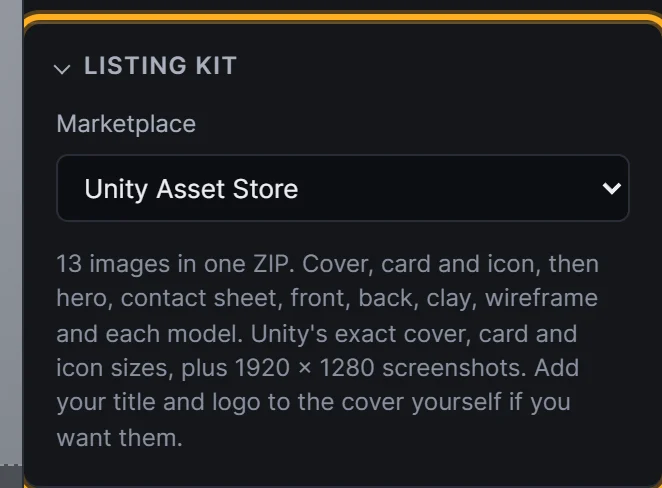 Choose a marketplace
| Kit | Sizes | Based on |
|---|---|---|
| CGTrader | 2048 × 2048 | CGTrader's batch upload layout. The guideline doesn't set an image size, so 2048 px is our choice |
| Fab | 1920 × 1080 | Fab's minimum for gallery images. Fab limits a gallery to 25 MB in total, so choose your best images for a large pack |
| Unity Asset Store | Cover 1950 × 1300, card 420 × 280, icon 160 × 160, screenshots 1920 × 1280 | Unity's key image sizes |
Marketplaces change their rules, so check their current requirements before you publish.
What's in the CGTrader ZIP
CGTrader's batch uploads expect one folder per model, holding that model's format archives and preview images. The kit builds that for you:
batch/
  Model 1/
    Preview 1.png   (3/4 view)
    Preview 2.png   (front)
    Preview 3.png   (back)
    Preview 4.png   (clay)
    Preview 5.png   (wireframe)
  Model 2/
    ...
pack-images/
  hero.png
  contact-sheet.png
Add each model's format archives (such as Format 1.rar) to its folder, then upload the batch folder. pack-images sits outside it so it isn't mistaken for a model: use those images wherever you promote the pack. For a single model, you just get its folder.
What's in the Fab and Unity ZIPs
| File | What it is |
|---|---|
key-images/ |
Unity only: cover, card and icon at their exact sizes. Add your title or logo yourself if you want them |
gallery/01-hero.png |
Every visible model together, from the 3/4 Front angle, in your current look |
gallery/02-contact-sheet.png |
Every model in one labelled grid (left out for a single model) |
gallery/...-front.png, ...-back.png |
Every model from the front and from the back |
gallery/...-clay.png, ...-wireframe.png |
Every model in matte clay, and with its real topology |
models/ |
One image of each model, named after it (left out for a single model) |
Only visible models are included, and your scene is restored afterwards.
Export
Click Export in the top bar and choose Listing kit:
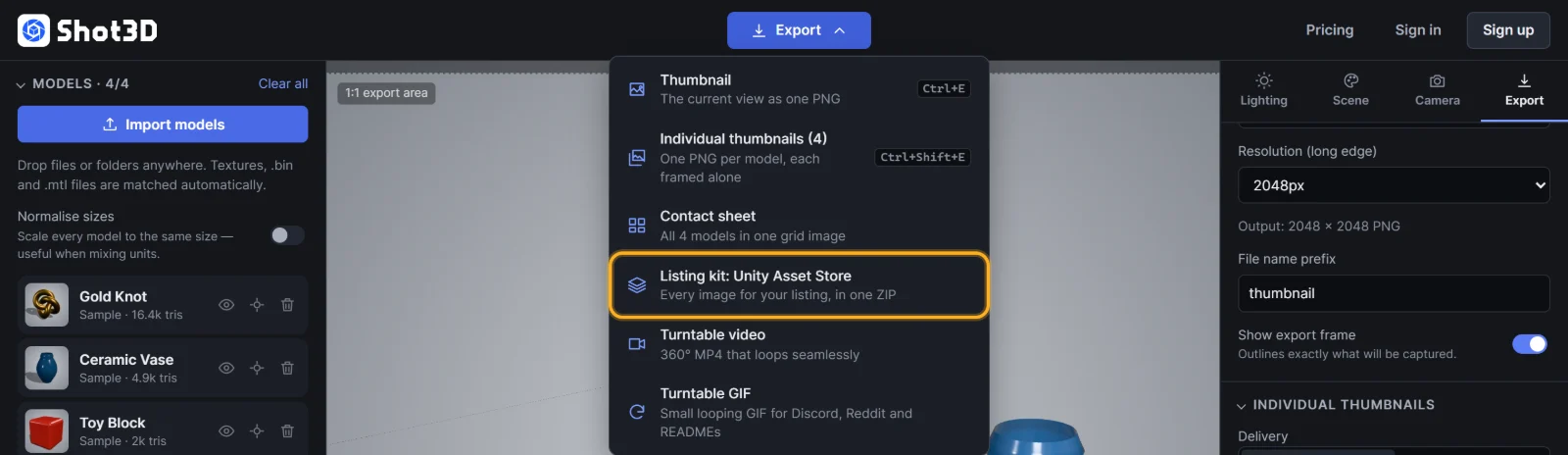 Export → Listing kit
A progress dialog shows each image as it's rendered, and the ZIP downloads when it's done. Each file in the kit counts as one export, which matters on the trial, because a kit needs all its exports available. With 25 in total, that's up to 4 models with the CGTrader kit, 16 with Unity and 19 with Fab.
The model report
Each kit's ZIP also contains model-report.txt: Model Doctor's check of every model in the kit, against that kit's marketplace rules. It doesn't count towards your exports.
Just need more angles?
For the same images from several angles without the rest of the kit, use Angles under Individual thumbnails. See exporting individual thumbnails.
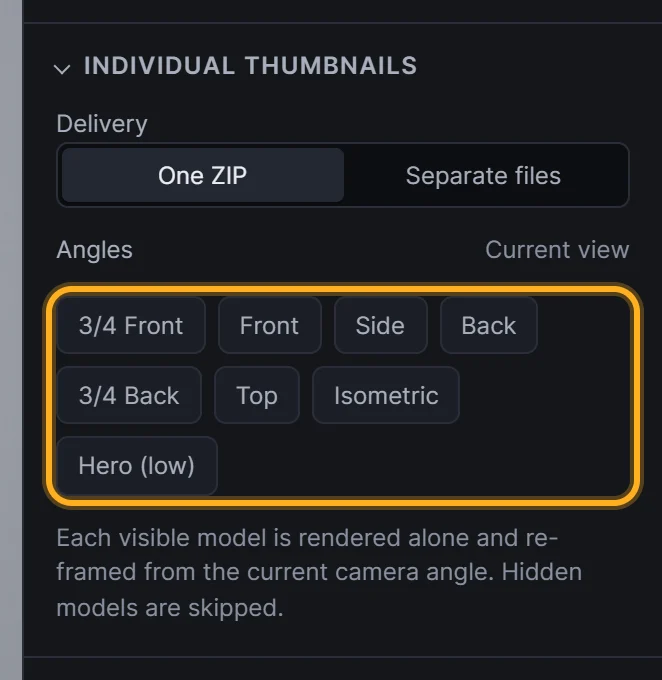 Choose several angles per model
Frequently asked questions
Which look does the kit use?
Your current look, except for the clay and wireframe images. Choose a preset first: Marketplace White and Dark Studio are good starting points.
Can I change which images are included?
Not yet. Delete any you don't need from the ZIP.
Will my listing be accepted with these images?
The kit handles the sizes and the variety of views. Marketplaces also review quality and content, so it can't guarantee approval.