
Colour variants: render a model in every colour
In short: open the Batch tab, choose what kind of variants you want, add colours (by hand, from the filament list or from a CSV file), and click Export. Every visible model is rendered in every colour, framed alone from the current angle, and named like thumbnail-vase-red-pla.png. Colour variants are on Pro (up to 20 colours at a time) and Studio (no limit).
Set up your colours
- Import your models and set up the look and camera angle you want. Variants use the current angle, aspect ratio and image size from the Export tab.
- Open the Batch tab and find Colour variants.
- Under Variants, choose how each colour is applied:
| Option | What you get |
|---|---|
| Tint the model’s own materials | The model's own materials and textures, recoloured. Textures keep their detail and are multiplied by the colour |
| Clay in each colour | A matte clay render in each colour, good for untextured models |
| 3D print in each filament | A 3D print look with layer lines, in each filament colour. See 3D print preview |
- Add colours: Add colour for one at a time (click its swatch to pick a colour, and type its name), Add filament colours for Shot3D's list of common filaments, or Import CSV for a list from a spreadsheet.
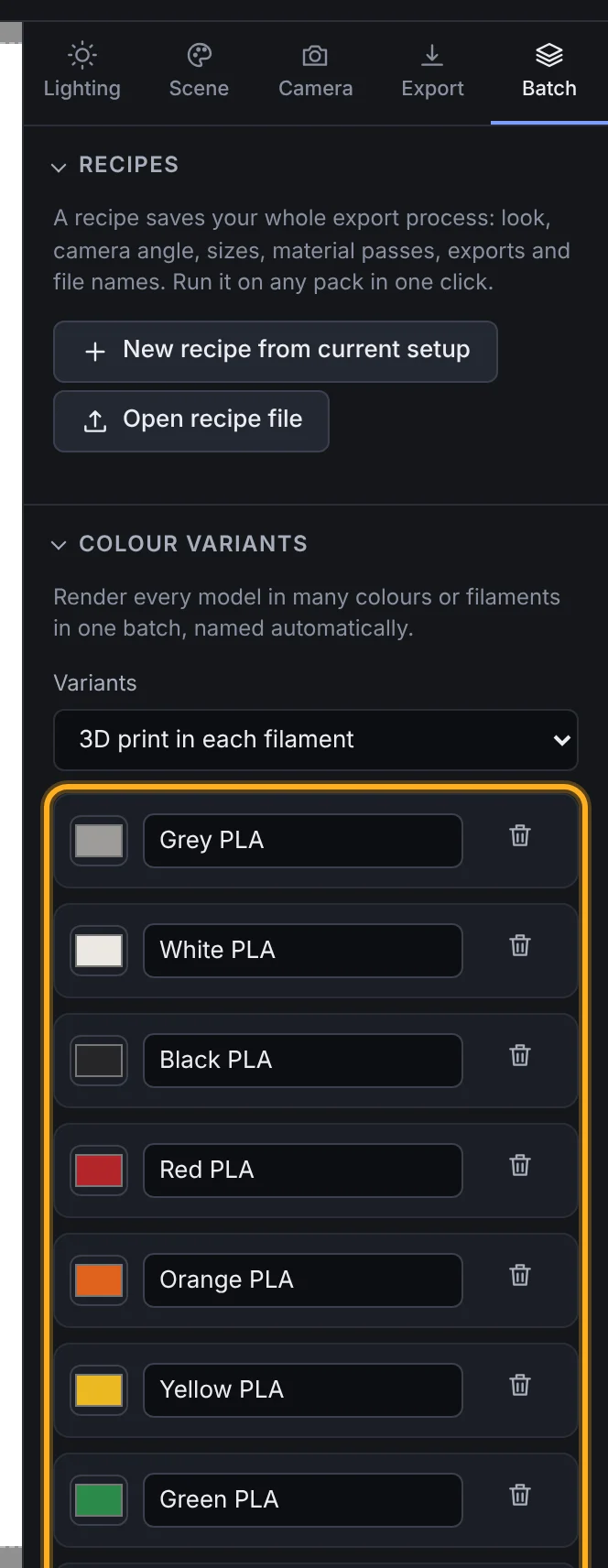 Filament colours as variants
The line under the list shows how many images you'll get: the number of colours times the number of visible models.
Export
Click Export under the list, or choose Export → Colour variants:
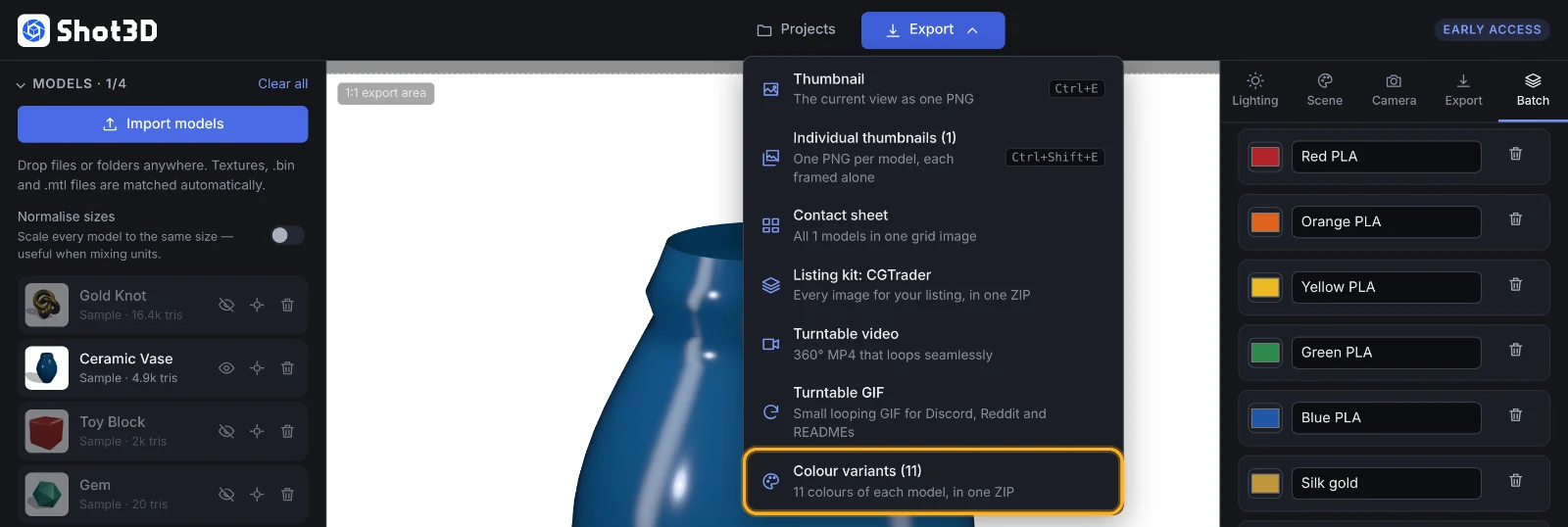 Colour variants in the Export menu
Every visible model is framed alone in every colour and delivered as one ZIP, or as separate files if you chose that under Individual thumbnails. Files are named prefix-model-colour.png, using the File name prefix from the Export tab.
Each image counts as one export.
Import colours from a spreadsheet
Put one variant per line, as name, colour, finish:
name,colour,finish
Cherry red,#b3262a,
Navy,#1d2b53,0.8
Silk gold,Silk gold,
- colour is a hex code (#b3262a) or the name of one of Shot3D's filaments (Red PLA, Silk gold).
- finish is optional: a number from 0 (glossy) to 1 (matte). It applies to clay and 3D print variants.
- A header row is optional. Commas, semicolons and tabs all work, so you can save straight from Excel, Numbers or Google Sheets as CSV.
Lines Shot3D can't read are reported rather than guessed. Download CSV saves the current list, to edit in a spreadsheet or reuse.
Plans
| Signed out and Free | £1 trial and Pro | Studio | |
|---|---|---|---|
| Colour variants | No | Up to 20 colours at a time | No limit |
The batch limit still applies to the total number of images: 200 a batch on Pro and the trial, with no limit on Studio.
Frequently asked questions
Does tinting change my model's textures?
Only in the rendered images. Tinting multiplies each material's colour, so a white texture takes the new colour fully and a dark texture stays dark. Your files are never changed.
Can I save my colour list?
Yes. The list stays in the Batch tab in this browser, and Download CSV saves it as a file. A recipe that includes colour variants also saves the list.
Why does each model look the same in every variant?
If you chose Tint the model’s own materials and the model's materials are very dark, or are textures that are mostly black, a tint has little effect. Try Clay in each colour instead.