
GLB thumbnail generator: marketplace-ready images from glTF models
Open the GLB thumbnail generatorFree · runs in your browser · files stay on your device
In short: open the generator, drop in your GLB or glTF files, choose an angle and click Export → Individual thumbnails. Every model is rendered on its own on a white studio backdrop, framed automatically and saved as a PNG, all in one ZIP. It runs in your browser and supports Draco, Meshopt and KTX2-compressed glTF.
Marketplaces, asset libraries and game-asset stores all need a preview image for every model, and they look best when every image matches. Rendering them one at a time in a 3D package is slow. This generator applies one consistent look to all your models and frames each one for you.
How to generate thumbnails from GLB files
- Open the generator. The studio opens with the Marketplace White look: a pure white backdrop with soft contact shadows.
- Drop in your models. Drag GLB or glTF files, or a whole folder, onto the viewport. For
.gltf, include its.binand texture files; they're matched automatically. - Pick the angle. Press 1 for 3/4 front (the standard hero angle) or 7 for isometric. Every model uses this angle.
- Set the size. In the Export tab, choose the aspect ratio (Square 1:1 suits most stores) and resolution.
- Export. Click Export → Individual thumbnails. Each model is shown alone, framed to fill the image and saved as
thumbnail-<model-name>.pngin one ZIP.
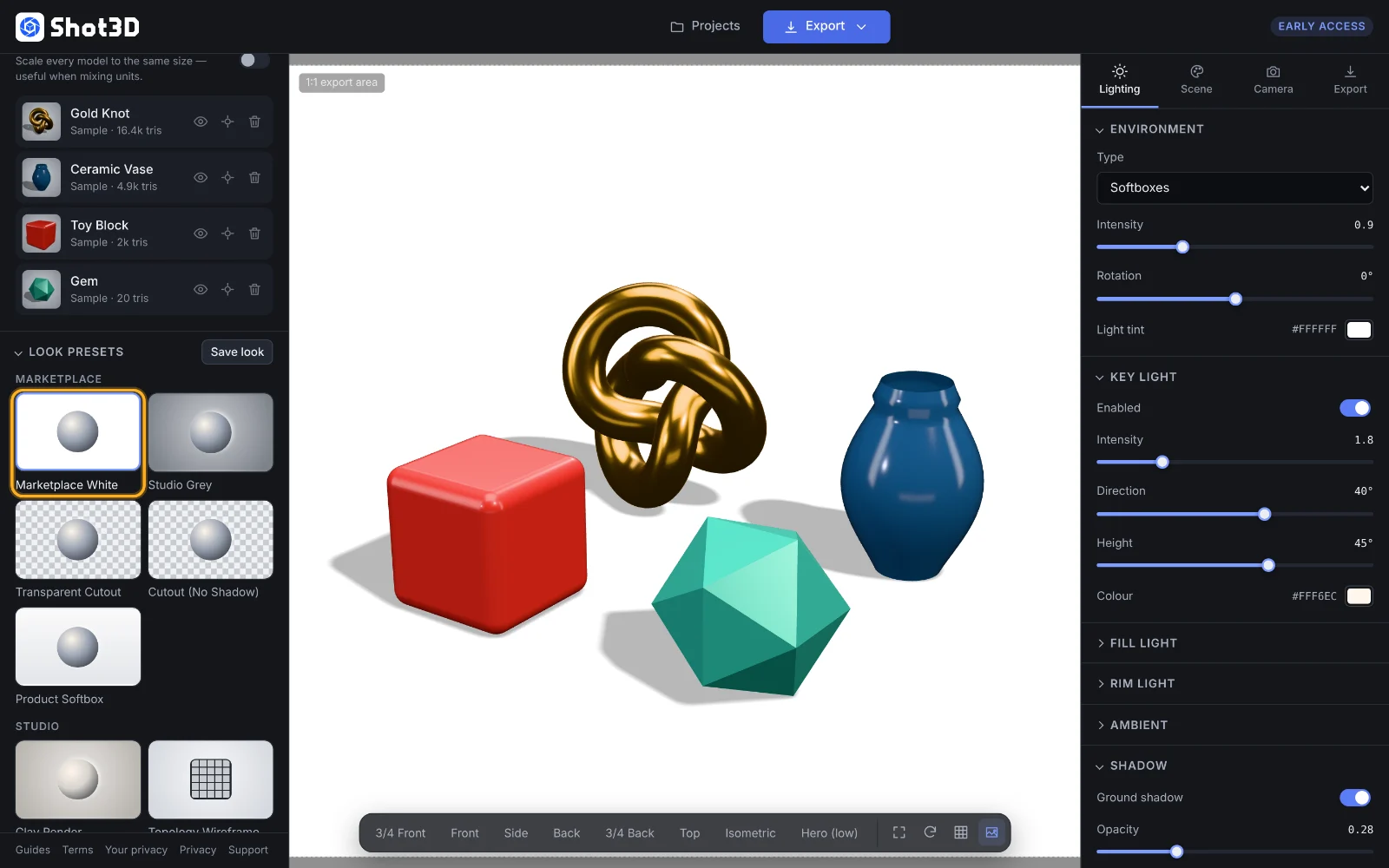 The Marketplace White look the generator opens with
Why the thumbnails come out consistent
- The same look for every model. Lighting, background and camera angle are shared, so a whole pack matches.
- Automatic framing. Each model is framed from its own bounding box, so small and large models both fill the image. Adjust the Framing margin in the Camera tab for more or less space.
- Colour-accurate by default. The Neutral tone mapping keeps your textures' colours true.
Want your own style? Adjust the lighting or background, then Save look as a preset to reuse for every future batch. See using look presets.
Limits by plan
| Plan | Thumbnail size | Models per batch |
|---|---|---|
| Free | Up to 1,024 px, with a small Shot3D label | 5 |
| Pro (£10/month, £1 for 3 days) | Up to 4,096 px | 200 |
| Studio (£25/month) | Up to 8,192 px | Unlimited |
Frequently asked questions
Does it support compressed glTF?
Yes. Draco, Meshopt and KTX2 compression are all supported, in both GLB and glTF files.
Can I get transparent thumbnails instead of white?
Yes. Choose the Transparent Cutout preset, or set the background to None in the Scene tab, before exporting. See the transparent PNG tool.
Are my GLB files uploaded anywhere?
No. Everything is loaded and rendered in your browser, and the ZIP is created on your device.
What are the thumbnails called?
Each file is named with your prefix (thumbnail by default) and the model's name, for example thumbnail-oak-chair.png. Set the prefix in the Export tab.