
STL and OBJ to video: render a 3D file as an MP4 or GIF
Open the STL and OBJ video makerFree · runs in your browser · files stay on your device
In short: open the video maker, drop in your STL or OBJ file and choose Export → Turntable video for an MP4, or Export → Turntable GIF for a GIF. Shot3D spins the model through a smooth 360° on your own device, with lighting already set up. GIFs are on every plan, and MP4 is part of Pro and Studio.
Files such as STL and OBJ hold a shape, not a video. To show one to someone who doesn't have a 3D program, you need to render it, and that usually means learning keyframes and video settings for what's only a simple spin.
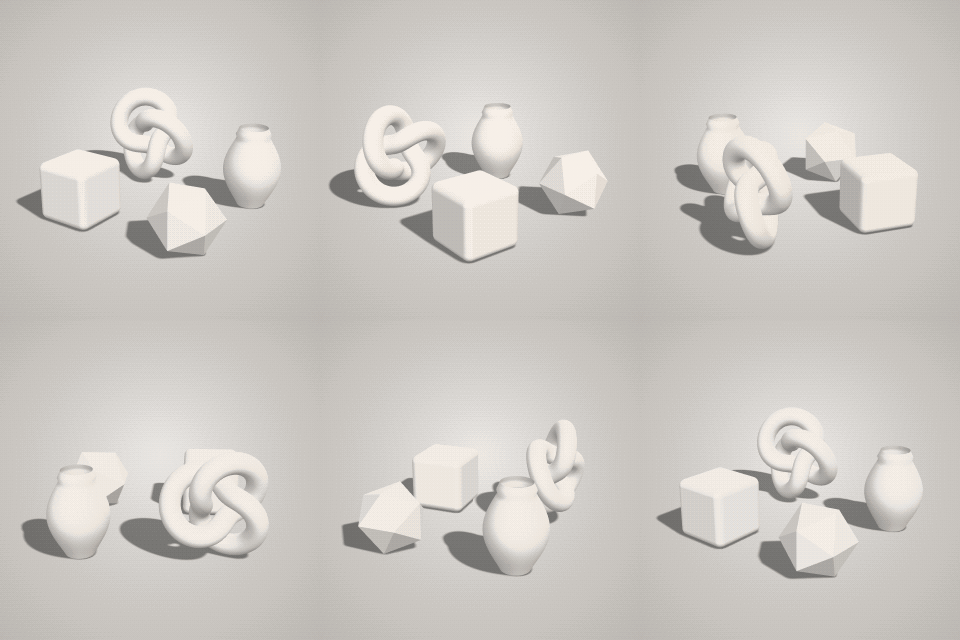 A real turntable GIF from the video maker
How to make a video from a 3D file
- Open the video maker. It opens with Clay Render, which suits STL files, as they have no colour.
- Drop in your file. STL, OBJ, FBX, GLB, glTF, PLY and 3MF all work. For OBJ, drop in the .mtl and textures as well.
- Set up the shot. Press 1 for the 3/4 view and F to frame. Press R to preview the spin and check nothing clips at the edges.
- Choose your settings. In the Export tab, under Turntable video and GIF, set the length, motion, direction and size.
- Export. A progress bar counts through the frames, and the file downloads when it's done.
MP4 or GIF?
| MP4 | GIF | |
|---|---|---|
| Best for | Listings, YouTube, Reels, TikTok, portfolios | Discord, forums, READMEs |
| Quality | High, up to 1080p on Pro and 4K on Studio | Lower, with 256 colours, up to 320 px on Free and 800 px on paid plans |
| File size | Small for its quality | Large for its quality, so keep it short |
| Plan | Pro and Studio | Every plan |
Tips by file type
STL: the format has no colours or textures. Use Clay Render for a neutral look, or the 3D print preview to show it as a print with layer lines.
OBJ: colours and textures are held in separate files. If your model looks plain, drop the .mtl and texture images in together with the .obj. FBX and OBJ can also show their real quads with Topology Wireframe, which makes a good video of the mesh.
Z-up files: if the model is lying on its side, as many CAD and print files do, click it in the Models list and use the Rotate 90° buttons first.
Choosing the settings
- Length: one full turn in 6 to 10 seconds feels calm and easy to follow.
- Motion: Model spins keeps the lights and backdrop still. Camera orbits moves around the model.
- Shape: the video uses the aspect ratio from the Image section. Choose 16:9 for YouTube, 1:1 for listings or 9:16 for Reels and TikTok.
See the turntable video guide for every setting.
Frequently asked questions
Can I make the video for free?
Yes, as a GIF: every plan can make them, up to 320 px with a small Shot3D label on Free. MP4 video is part of Pro (£10/month, or £1 for a 3-day trial with 25 exports) and Studio.
Does the video loop smoothly?
Yes. The rotation is exactly 360° at a constant speed, with no repeated frame where it loops.
Can I animate the model itself?
No. It makes turntables, where the model or camera turns. It doesn't play animations stored in the file.
Are my files uploaded?
No. Every frame is rendered and encoded on your own device.
Which browsers can export MP4?
MP4 export uses the browser's built-in video encoder. Current Chrome, Edge and Safari on desktop work best. If a size isn't supported, Shot3D tells you and suggests a smaller one.