
STL to PNG: render STL files as images, free and online
Open the STL to PNG toolFree · runs in your browser · files stay on your device
In short: open the tool, drop in your STL files (or 3MF and PLY), pick an angle and click Export → Thumbnail for one image, or Export → Individual thumbnails for a PNG of every file in one ZIP. It opens with a matte clay look that suits untextured print models. Everything renders in your browser, so your files are never uploaded.
STL files store shape only: no colours, no textures. That's why a plain STL viewer screenshot often looks flat and grey. This tool renders them like a product photo instead, with soft studio lighting, a contact shadow and a clean background, so the images are good enough for an Etsy listing, a print catalogue or a portfolio.
How to convert STL to PNG
- Open the tool. The studio opens with the Clay Render look already applied.
- Drop in your files. Drag STL, 3MF or PLY files (or a whole folder) onto the viewport, or click Browse files. Each model is centred, placed on the ground and framed automatically.
- Choose an angle. Press 1 for the classic 3/4 view, 2 for front, 6 for top, or drag to orbit. See camera angles.
- Export. Click Export → Thumbnail for one PNG of the view, or Export → Individual thumbnails for a separate, auto-framed PNG of every file, delivered as one ZIP.
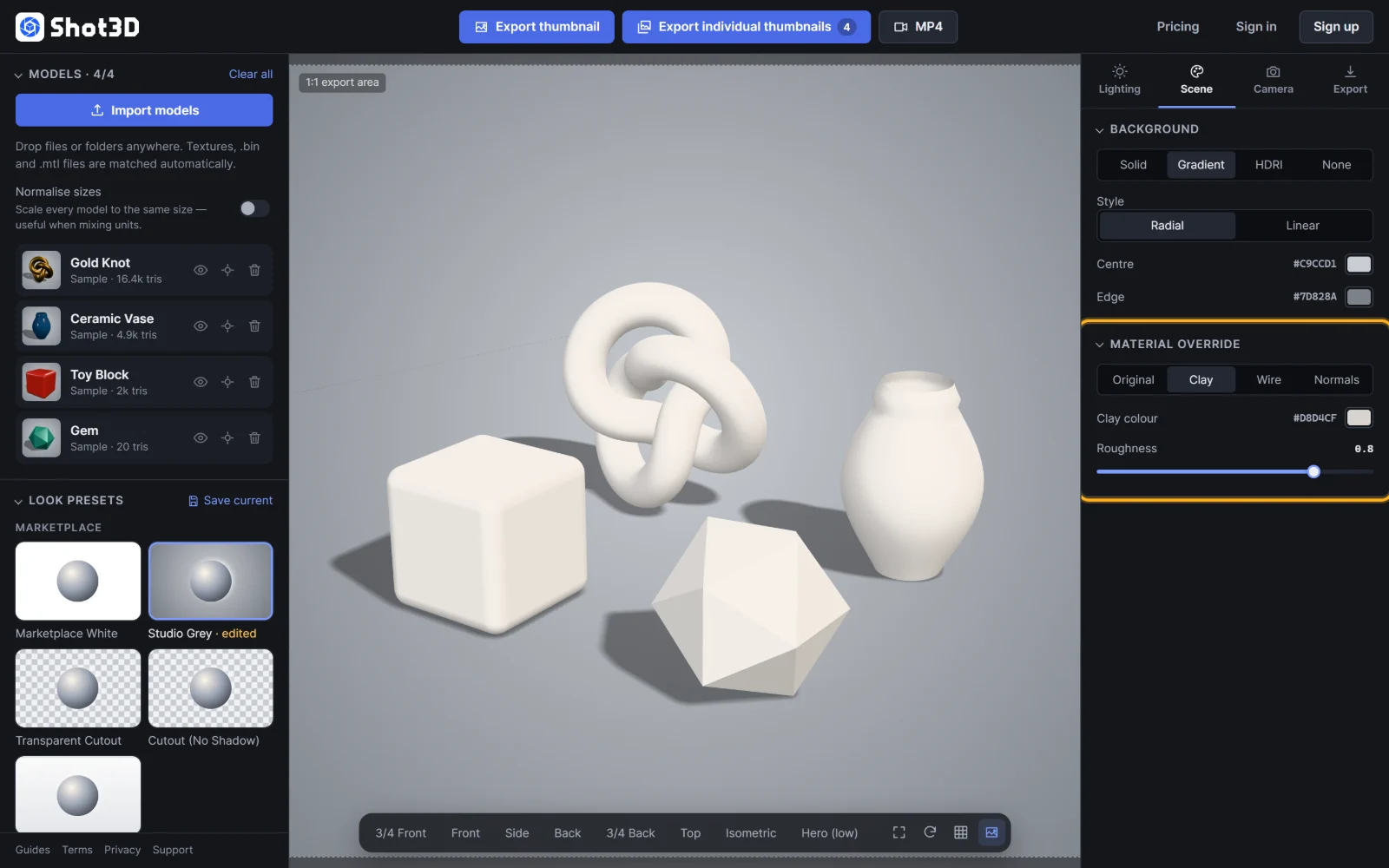 The Clay Render look the tool opens with
Settings that work well for print models
| You want | Do this |
|---|---|
| A clean product shot | Keep Clay Render, or switch to Marketplace White for a pure white background |
| A cut-out for your own graphics | Set the background to None in the Scene tab for a transparent PNG |
| To show the print in its real colour | Change the Clay colour in the Scene tab to your filament colour |
| A square image for Etsy or social posts | Keep the aspect ratio at Square 1:1 in the Export tab |
| Larger images | Pick the size under Resolution (long edge): up to 1,024 px on Free, 4,096 px on Pro, 8,192 px on Studio |
What you get
- PNG files at the size you choose, with an optional transparent background.
- One image per model in a single ZIP when you use Export → Individual thumbnails, named after each file. Free exports up to 5 models at a time and 10 images a day, Pro up to 200 and Studio has no limit.
- On the Free plan, each image carries a small "Made with Shot3D" label in the corner. Pro and Studio exports have none.
Want to see it as a finished print, with layer lines? Try the 3D print preview.
Frequently asked questions
Is the STL to PNG converter free?
Yes, for up to 10 exports a day with a free account (3 without one). The Free plan exports PNGs up to 1,024 px with a small Shot3D label, in batches of up to 5 models. Pro (£10/month, or £1 for a 3-day trial with 25 exports) removes the label and raises the limits.
Are my STL files uploaded?
No. Files are opened and rendered in your browser and the PNGs are saved straight to your device. Nothing is sent to a server.
Can I convert many STL files at once?
Yes. Drop them all in (or drop their folder), then click Export → Individual thumbnails. Every model is framed and rendered on its own and saved into one ZIP.
Why does my STL look grey?
STL files contain only geometry, so there's no colour to show. The clay look is designed for that. To match your filament, change the Clay colour in the Scene tab.