
Asset pack contact sheet maker: every 3D model in one image
Open the contact sheet makerOpens at 3072 × 3072 px · Free · runs in your browser · files stay on your device
In short: open the contact sheet maker, drop in every model from your pack and choose Export → Contact sheet. Each model is rendered on its own, framed the same way and laid out in a balanced grid with its name in the corner, as one PNG. It opens with the Dark Studio look and square cells on a 3,072 px sheet. It runs in your browser, and your models are never uploaded.
The first image of an asset pack listing has one job: show buyers everything they get. Doing that by hand means rendering each model, then lining up dozens of images in Photoshop. Here it's one export, and every cell matches because every model uses the same lighting, angle and framing.
How to make a contact sheet
- Open the contact sheet maker. It opens with Dark Studio, square cells and a 3,072 px sheet.
- Drop in the whole pack. Drop the folder of GLB, FBX, OBJ, STL, PLY or 3MF files. Textures are matched automatically.
- Pick an angle with 1 to 8. 1 (3/4 Front) suits most props; 7 (Isometric) suits low-poly and voxel packs.
- Check the grid. In the Export tab, the Contact sheet section shows the grid it will make. Auto picks the most balanced layout, or set the number of columns yourself.
- Export. Choose Export → Contact sheet. One PNG downloads with every visible model.
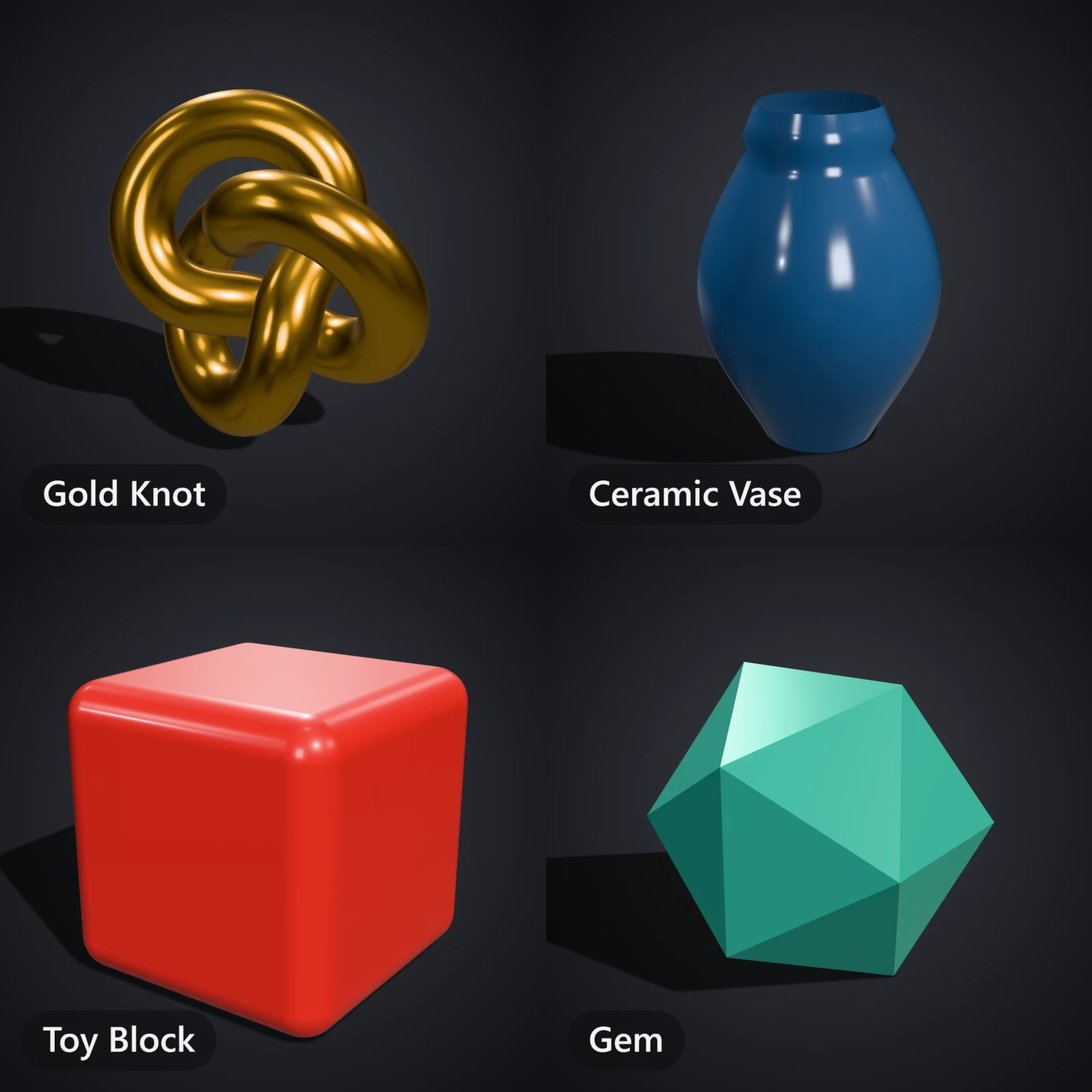 A real contact sheet from the maker's settings
What you get
| Layout | Balanced automatically (for example 6 × 5 for 30 models), or 2 to 12 columns |
| Cells | Each model framed alone, from the same angle, in your chosen aspect ratio |
| Labels | Each model's name, tidied from the file name: 03_CherryPair.glb becomes "Cherry Pair". Can be turned off |
| Size | The long edge of the whole sheet: up to 1,024 px on Free, 4,096 px on Pro, 8,192 px on Studio |
| Format | PNG, with transparency if the background is set to None |
Tips for listing images
- Name and number your files. Labels come from file names, and the sheet follows the order of the Models list.
01_Apple.glb,02_Pear.glbkeeps everything in order, and the numbers are left out of the labels. - Make the sheet big enough. For 30 or more models, export at 4,096 px or more so each cell stays sharp when buyers zoom in.
- Match the marketplace. A 16:9 or 3:2 aspect ratio fills most gallery slots on CGTrader, Fab and the Unity Asset Store. Use 1:1 for square previews.
- Follow it with close-ups. Use the sheet as the first image, then add one image per model and a turntable video.
Selling on CGTrader? On Pro and Studio, Export → Listing kit arranges previews in its batch upload layout, one folder per model. See exporting a listing kit.
Frequently asked questions
Is it free?
Yes, for up to 10 exports a day with a free account (3 without one). The Free plan makes contact sheets of every visible model up to 1,024 px, with a small Shot3D label. Pro (£10/month, or £1 for a 3-day trial with 25 exports) removes the label and goes up to 4,096 px; Studio goes up to 8,192 px.
How many models can go on one sheet?
There's no fixed limit. More models means smaller cells, so raise the resolution for big packs. For very large packs, hide some models and make one sheet per category.
Can I hide some models?
Yes. Hidden models (the eye button in the Models list) are left out of the sheet.
Are my models uploaded?
No. Everything renders in your browser and the sheet is saved straight to your device.
See the contact sheet tutorial for every setting.